Projekt Republic for Mac
macOS 13 or later
- Version
- —
- Released
- —
- You need
- —
- Size
- —
What is new in this version
This version has no release notes.
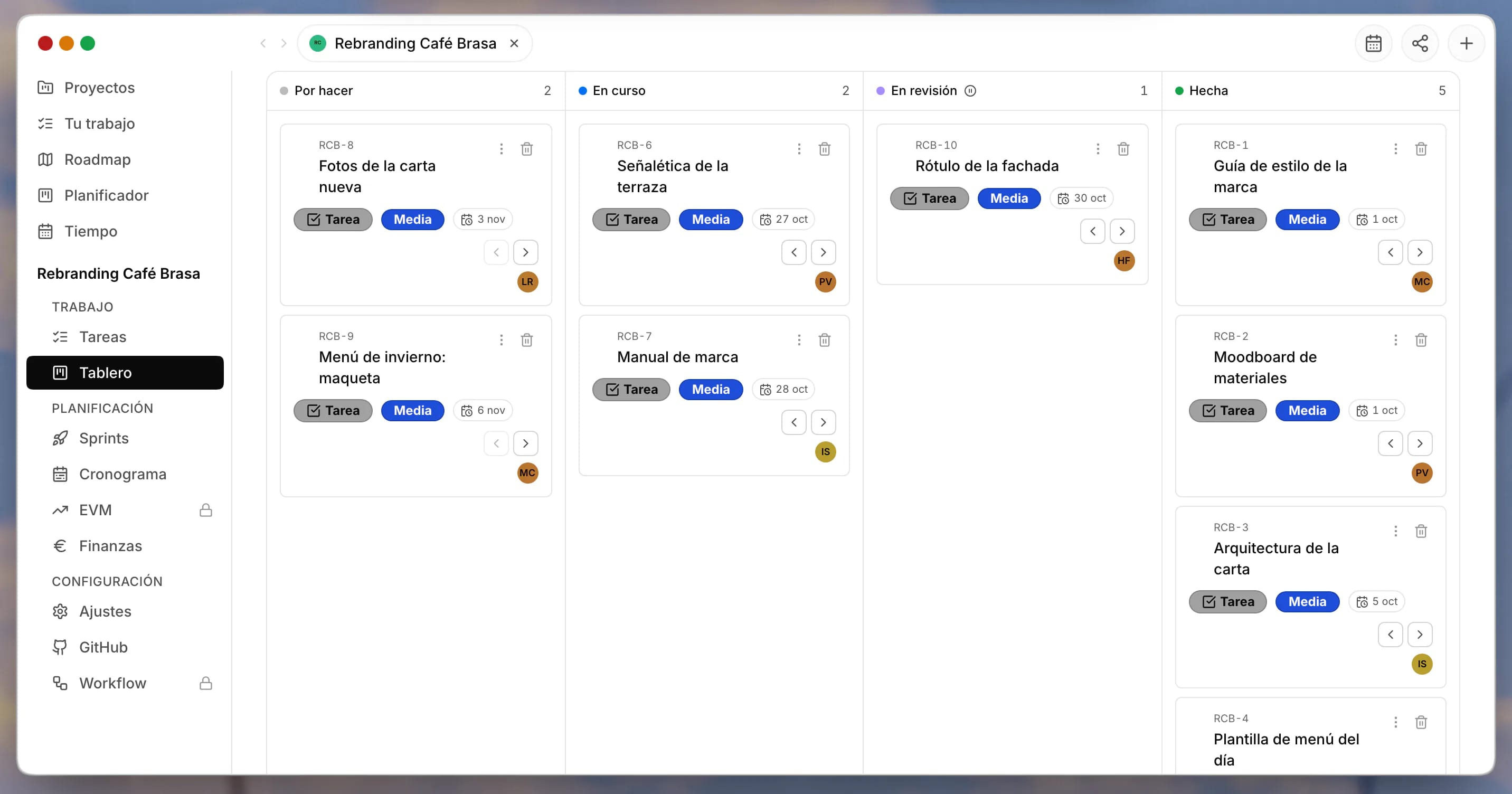
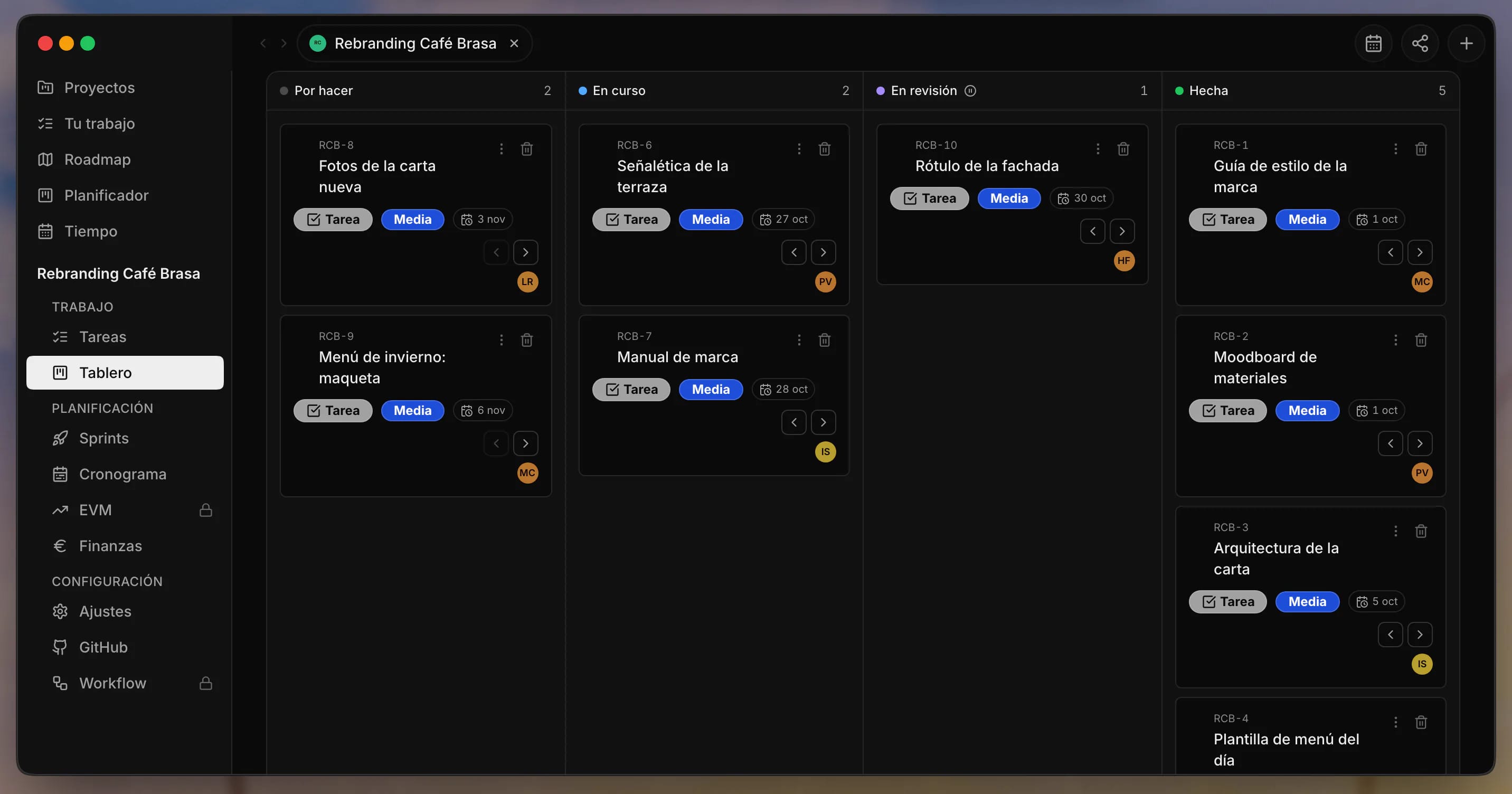
Your Projekt desktop as one more app on your computer: every tool in its own window, with the system shortcuts and notifications. You sign in with your usual account and the app keeps itself up to date.
Free · macOS 13 or later · Windows 10 or 11
macOS 13 or later
This version has no release notes.
Windows 10 or 11
This version has no release notes.
It is the same Projekt Republic, with your same account and your same data. What changes is what an app installed on your computer can do.
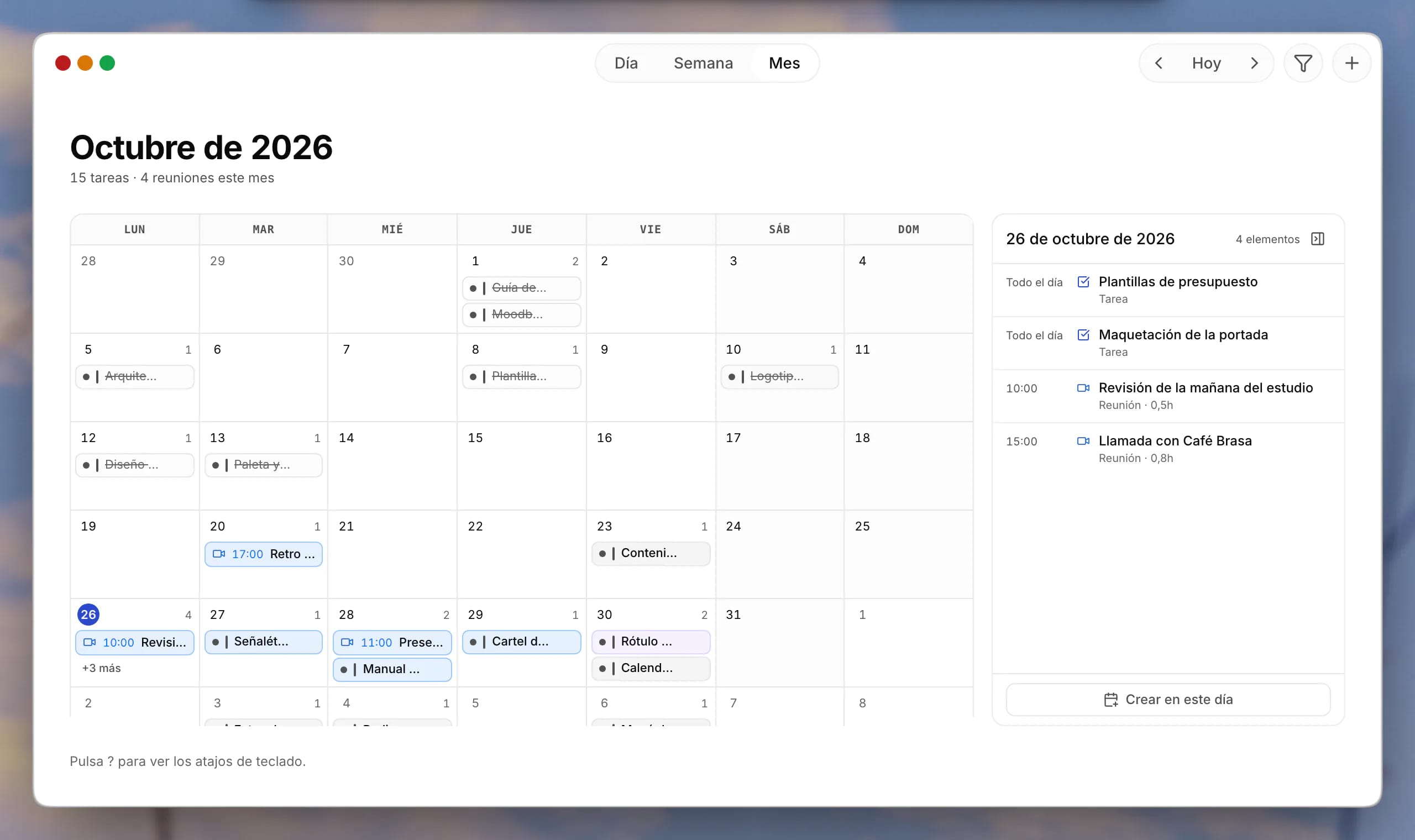
Projects, Calendar or Messages open in windows you move, tile and minimise like any other app, with no browser tabs in the way. With ⌥⌘Space on a Mac, or Alt+Win+Space on Windows, you bring Projekt Republic to the front from anywhere.
Meetings, reminders and messages notify you through macOS or Windows notifications, even with the app in the background. And from the menu bar or the tray you open it without looking for it.
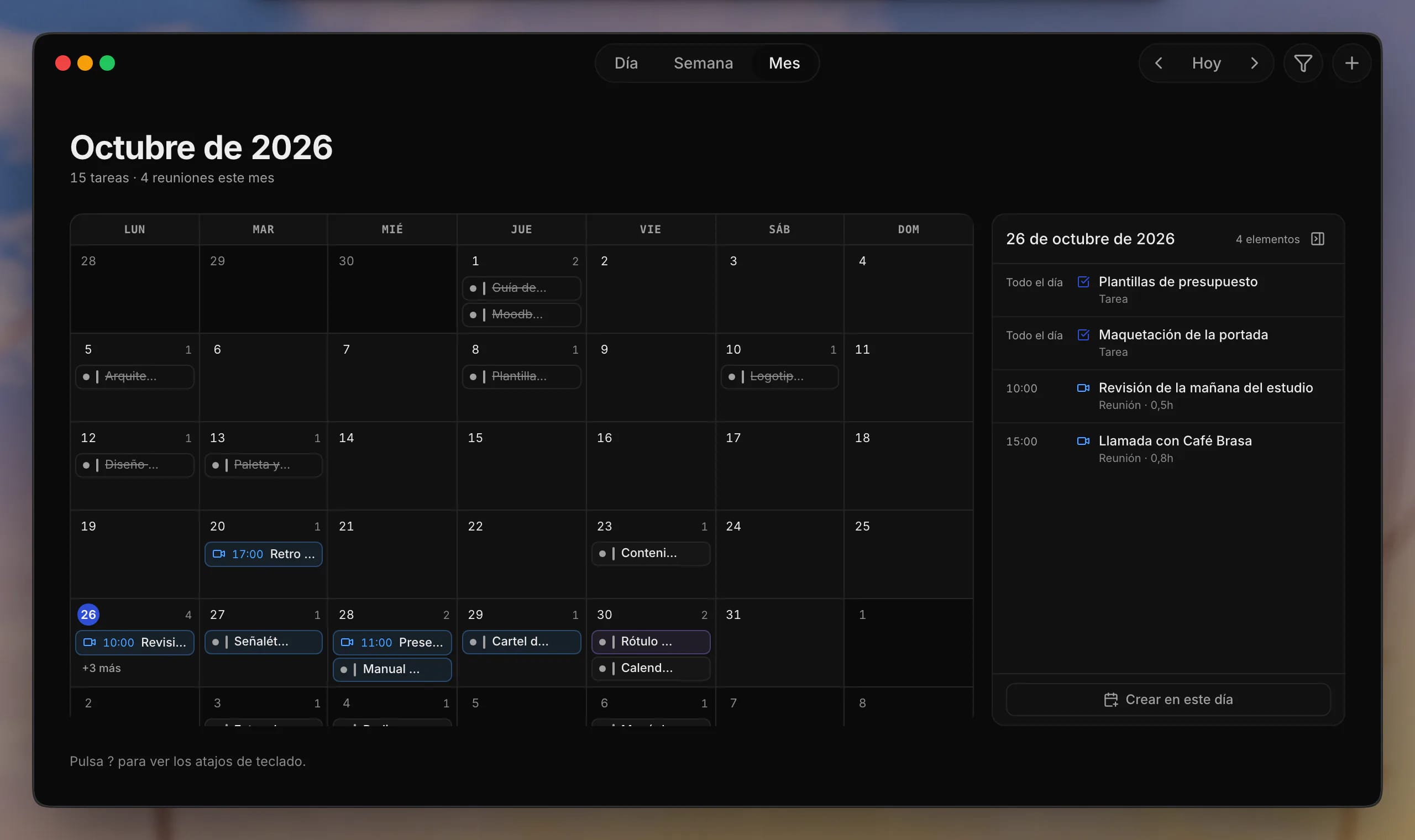
Search the folders and repositories on your computer that you choose. And Kern can use tools on your computer, always with your permission.
Without a connection you read what you already had and queue some changes, which are sent by themselves when the connection is back.
On a Mac, lock it with a PIN or your Mac password when you step away. On Windows, the PIN is still in testing.
These two apps need more resources than a browser tab can give, so they only open in the installed app.
Work with the repositories on your computer without uploading them first: terminals, editor and agent sessions on the folders you choose.
Needs a paid plan.
The web inside your desktop, with tabs, bookmarks, spaces and per-site permissions.
Free. On Windows, still in beta.
The app is signed with a Projekt Republic certificate, not yet with an Apple one. That is why, the first time you open it, macOS warns that it cannot check it. It is not a virus or a broken download, and it only happens once. On macOS 15 or later it takes four steps:
Open the .dmg you just downloaded and drag Projekt Republic to the Applications folder.
Double-click Projekt Republic. macOS warns that it cannot check who signed it: click «OK».
Go to System Settings › Privacy & Security, scroll down to Security and click «Open Anyway» next to Projekt Republic.
Enter your password or use Touch ID. The app opens and macOS does not ask again.
Open the .dmg and drag Projekt Republic to the Applications folder.
In Applications, right-click (or Control-click) Projekt Republic and choose «Open».
macOS asks whether you want to open it. Click «Open»: it only asks this once.
The installer is not code-signed yet, so Windows SmartScreen asks you to confirm it once. It takes four steps:
Open the .exe you just downloaded. It installs for your user only: it does not ask for administrator rights.
SmartScreen shows «Windows protected your PC» because the installer is not signed. Click «More info».
It appears next to Projekt Republic. Windows only asks this once.
If your computer lacks WebView2, the installer downloads it. When it finishes, Projekt Republic opens and stays in the Start menu.
Nothing. The app is a free download and works with any plan, including the free one. What you pay, if anything, is your Projekt Republic plan, which is the same on the web and in the app. Kode needs a paid plan; Navegador is free.
Yes. The app looks for new versions on its own and downloads them in the background. On a Mac they install themselves; on Windows, when you close the app. If a new version does not start on a Mac, it goes back to the previous one by itself. You do not need to come back to this page or repeat the first opening.
In your account, just like when you use the web: the app has no separate copy to sync. On your computer it only keeps what it needs to work offline (encrypted), your settings and the permissions you grant. From the app menu, «Sign out and delete local data» removes it.
Open the Apple menu › About This Mac: it says «Chip» followed by Apple M1, M2… or «Processor» followed by Intel. This page tries to detect it and offers the installer for your Mac; the other one is in the link next to it.
Yes. There is an installer for Windows on ARM, besides the 64-bit (x64) one, and the page offers the one for your PC when the browser tells it. Navegador is still in beta on Windows.
Not yet. On Linux, all of Projekt Republic works in the browser, except Kode and Navegador, which only open in the desktop app.
On a Mac, drag Projekt Republic from Applications to the Bin. macOS does not delete the settings the app saved: if you want nothing left, first use «Sign out and delete local data». On Windows, go to Settings › Apps, find Projekt Republic and click «Uninstall». Your account and your data stay on the web.
Create your desktop for free and sign in from the app or the browser.
Projects belong to the people.
© 2026 Projekt Republic · 3XA ECOM LLC. All rights reserved.