Chapter
Roadmap
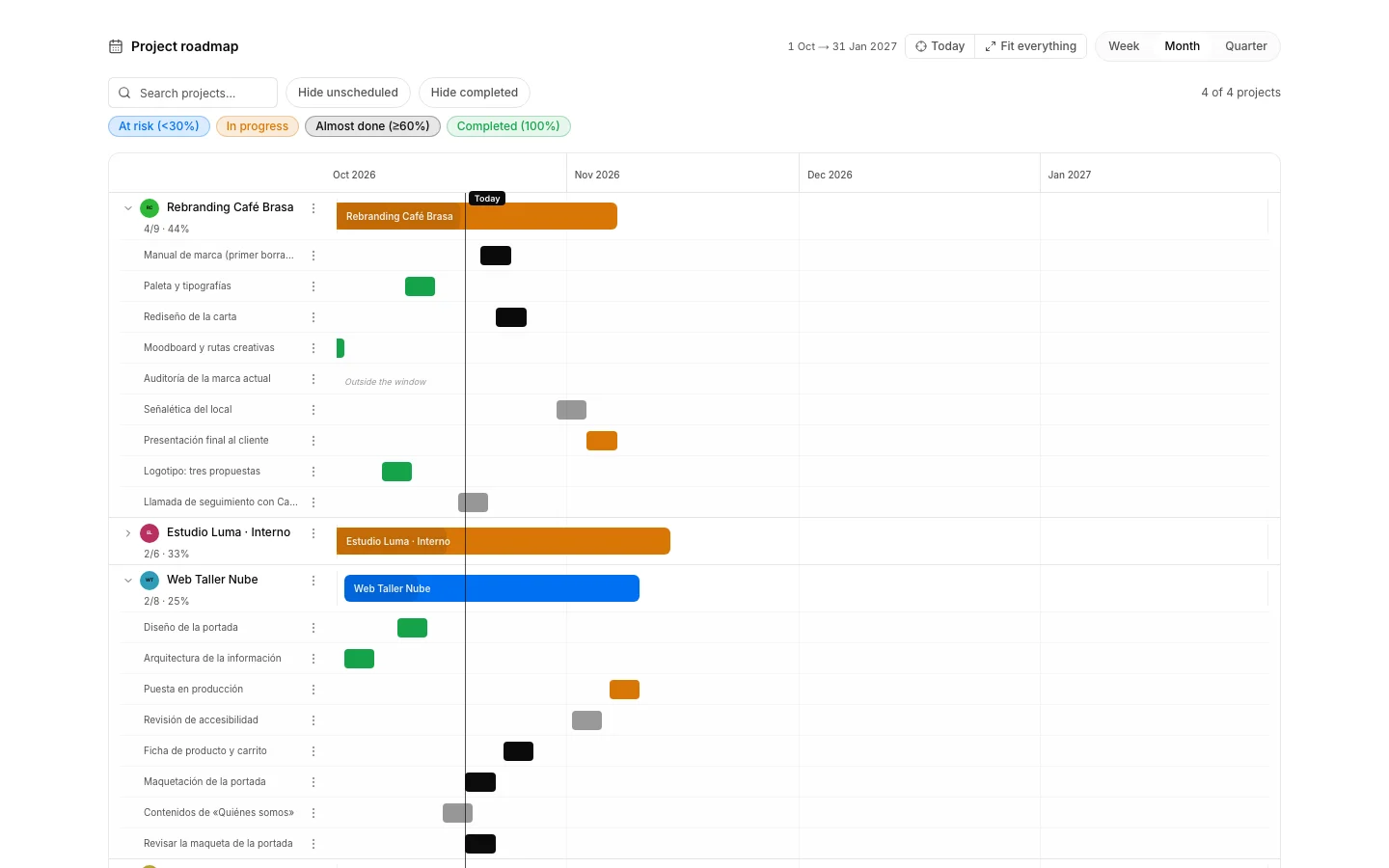
The roadmap shows, on a single timeline, when each project delivers.
See what ships, and when
To answer “where does this stand?” without opening a board.
How to do it
- Open the roadmap.
- One row per active project, with its bar and the share of tasks already done.
- The vertical line marks today, and the footer says how many projects are showing out of how many.
Put a piece of work on the timeline
Because the bar of a project is drawn from the dates of its tasks, first to last.
How to do it
- Create or open a task and unfold its dates.
- With a start and a due date it is drawn as a bar; with only one date, as a milestone.
- With no dated task at all, the project ends up in the list of the ones that cannot be drawn.
How to undo it. The dates of a task can be changed or cleared whenever needed; the timeline redraws itself and keeps nothing on the side.
Open a project and look at its tasks
To find out what is inside a bar that runs longer than it should.
How to do it
- Press the arrow to the left of the project name.
- Its tasks are drawn on the same axis, colored by status or priority.
- The ones with no dates are listed separately, underneath.
Frame the stretch of time you care about
So the current month is not squeezed flat by a whole year.
How to do it
- Pick the scale of the axis: week, month or quarter.
- “Today” brings the window back around today.
- “Fit everything” stretches the axis from the earliest date to the latest.
Keep only the projects that matter now
To look at what is lagging, or at one client, when the list is long.
How to do it
- The search box on the window bar filters by name.
- The chips filter by progress: at risk, under way, nearly done or completed.
- “Hide unplanned” and “Hide completed” cut the noise; “Clear” undoes the lot.
Measure one project from the inside
To see the schedule of a single project and how far it drifts on cost and on time.
How to do it
- Go into the project and open “Schedule”, under the planning group.
- Right beside it, “EVM” puts figures on the drift: planned, earned and spent.
- Both tabs come with this app: without it they are not there.