Chapter
Notes
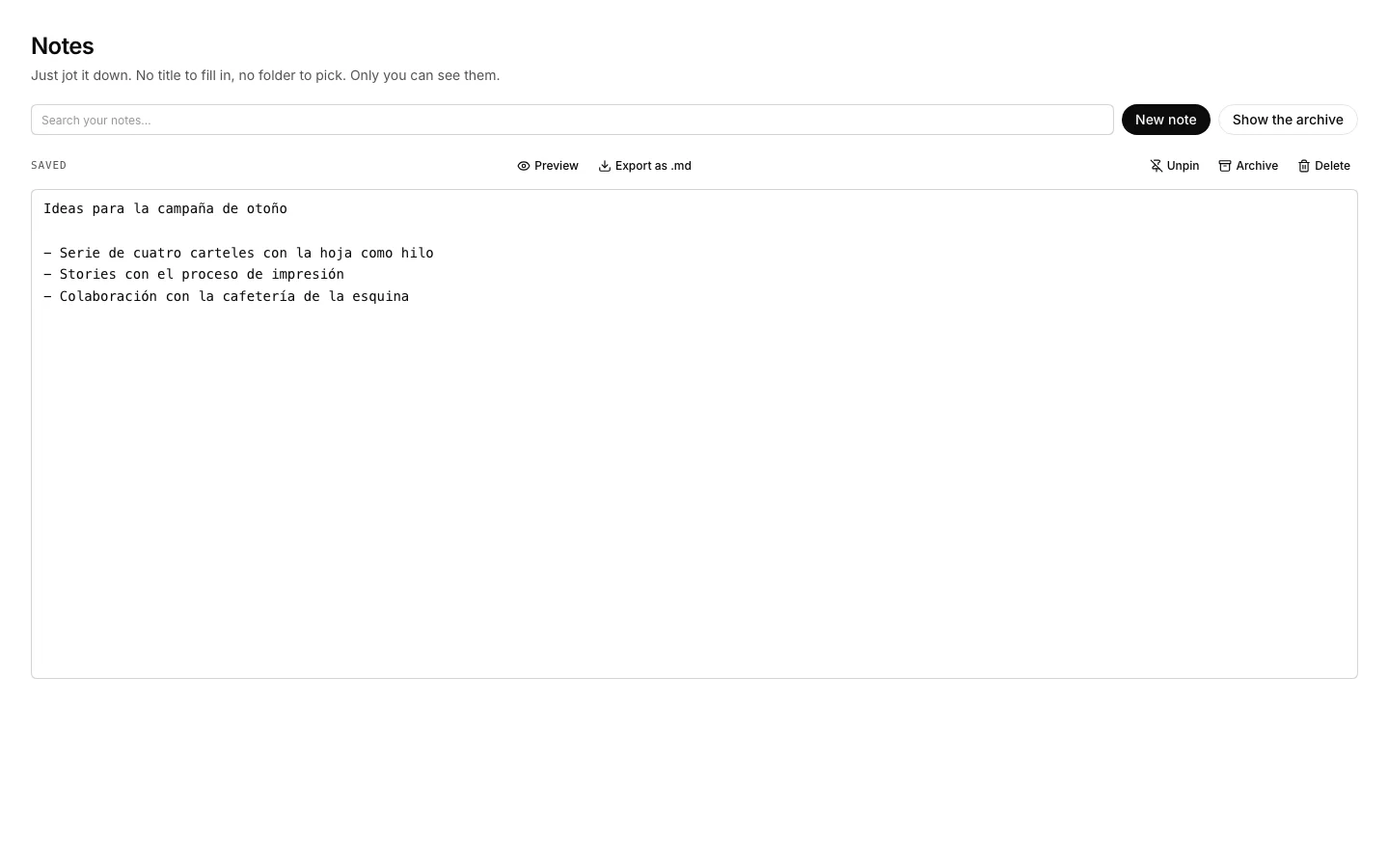
Notes is for jotting things down and nothing else: no title to fill in, nowhere to file it, and only you can see them.
Write a note
To jot something down now without losing what you were doing.
How to do it
- Just start typing: it saves itself, with no save button.
- The first line is the title, so start there.
How to undo it. A deleted note is not destroyed: it waits in the trash in organization settings —only yours, nobody sees another person’s— and comes back from there.
Jot something down without opening the app
So jotting something down does not cost a trip to the dock and a window.
How to do it
- Press ⌘⌥N on any desktop screen.
- Type into the box that appears on top and close it: the note lands here.
- It also opens from ⌘K and from the desktop background menu.
How to undo it. A deleted note is not destroyed: it waits in the trash in organization settings —only yours, nobody sees another person’s— and comes back from there.
Find what you jotted down
To reach a note by a word inside it, not by its title.
How to do it
- Type in the search box on the bar.
- The whole body is searched, so a word from the third page is enough.
Pin the one you always use
So the one you open daily does not sink as you write others.
How to do it
- Open the note and press “Pin to top”.
- Pinned ones come first; the rest are ordered by the last time you touched them.
How to undo it. Pinning is undone with “Unpin”: the note goes back to its place by date.
Archive what you no longer look at
To get it out of the way without deleting it.
How to do it
- Open the note and press “Archive”.
- To see them, turn on “Show the archive”: either what is in front of you or what is archived, never mixed.
How to undo it. Archiving deletes nothing: the note comes back by turning on “Show the archive” and taking it out.