Chapter
Kern
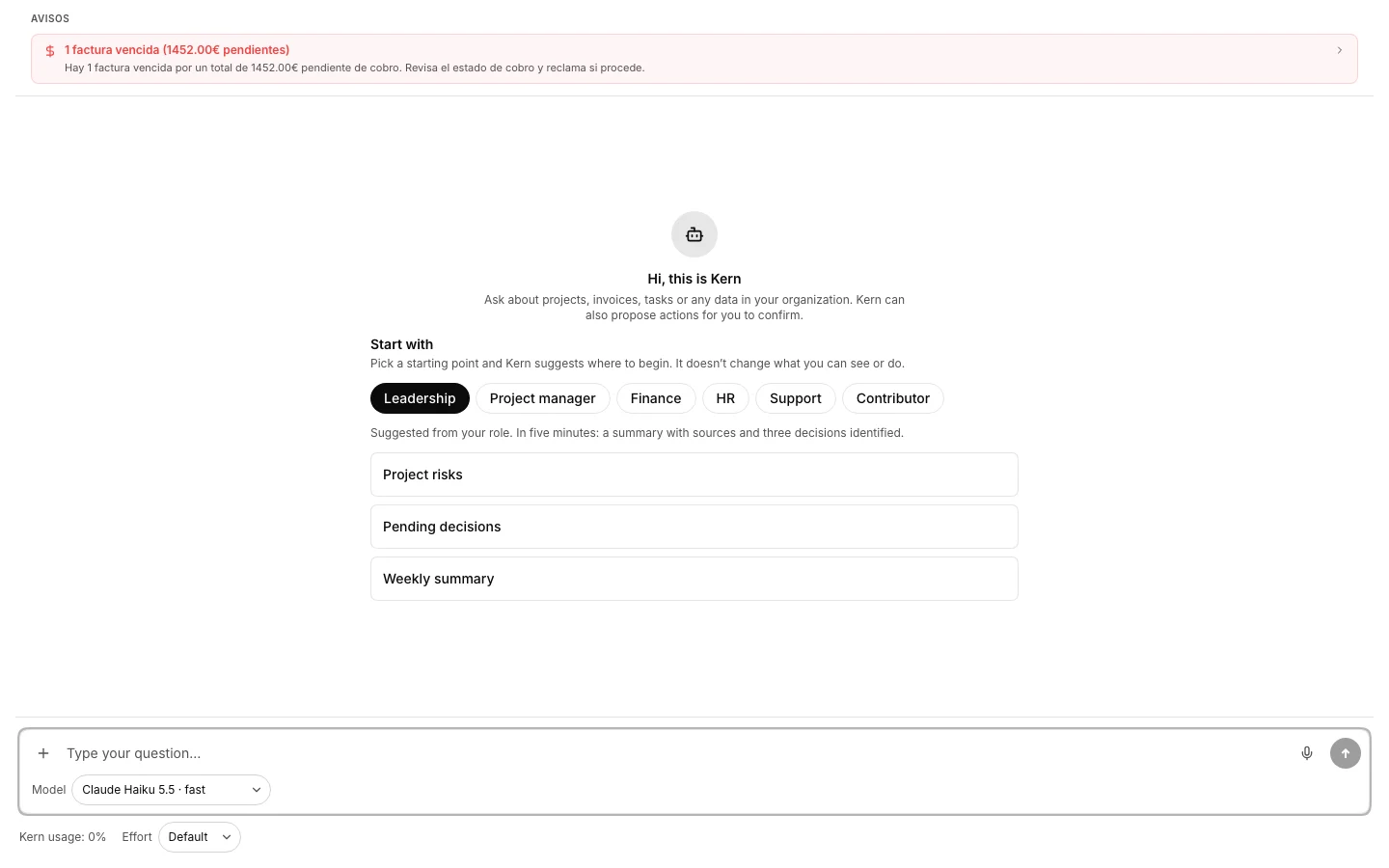
Kern is the assistant of the organization: it answers from your data and proposes actions for you to confirm.
Ask it about your data
To pull a figure or a status without walking through screens.
How to do it
- Open Kern and type the question with the project or client name in it.
- It answers on projects, tasks, sprints, time, invoices, expenses, clients and the team.
- It reads with your permissions: whatever your role cannot reach, it will not tell you either.
Confirm what Kern proposes
So the record is created by a press of yours and never behind your back.
How to do it
- Ask it to create a task, a project, a client, an invoice, an expense or a time entry.
- It also proposes changing the status or the dates of a task.
- Kern returns a card with the proposal: read it over and press confirm.
- Nothing is written until you confirm: Kern does not touch your data on its own.
How to undo it. What you confirm is created as if you had done it by hand, and it is corrected or deleted in its own app; until you confirm, the proposal has touched nothing.
Read the alerts Kern raises
To hear about what is falling due without going looking for it.
How to do it
- Open Kern: the alerts sit above the conversation.
- Press one and it takes you to the screen where it gets fixed.
Ask from a project or a client
So the conversation starts already knowing what it is about.
How to do it
- Open the project and go to its Kern tab; on a client, it sits on the record.
- Press “Ask Kern”: the conversation opens already linked.
- Earlier conversations about the same thing are listed right there.
Link a conversation to a project or client
So Kern knows what it is about and the conversation turns up on the record.
How to do it
- With the conversation open, press “Link to a project or client” on the bar.
- Pick the project, the client, or both.
Sort the conversations into folders
So the history still helps once it passes twenty conversations.
How to do it
- Open “Organize folders” on the bar and create the ones that serve you, with a name, an icon and a color.
- Move a conversation from its own row in the column, or with “Move to a folder” when it is open.
How to undo it. A conversation moves between folders as often as needed, and deleting a folder does not take what was inside it: those go back to the loose list.
Return to a conversation
To recover a good answer from last week.
How to do it
- The conversations sit in the window column, and they are private: nobody else sees them.
- Type in the search box on the bar: it looks at the title and inside the messages too.
Show it an image
To ask about something easier to see than to describe.
How to do it
- Press the “+” in the message box and pick the image.
- Type the question and send. Today it takes images and nothing else.
Check what you have spent
To know how much allowance is left before it runs out.
How to do it
- Press the gear on the Kern bar: “Kern settings” opens over the chat.
- Each line says whose allowance it is —yours or the organization’s— and when it refills.
- Close with Escape: the conversation stays where it was.