Chapter
Workforce
Workforce runs people: their record, the working day they clock, time off, and whatever is waiting on your sign-off.
Add someone to the team
So they can sign in, clock in and book time off from day one.
How to do it
- In People, the “+” on the window bar invites the account: whoever gets it can sign in, but has no record yet.
- Next to it, “Add HR record” opens the real thing: role, department, start date, tax ID and the account they get paid into.
- Put their email in there. If that email has no account yet, the same screen offers to invite them and creates both at once.
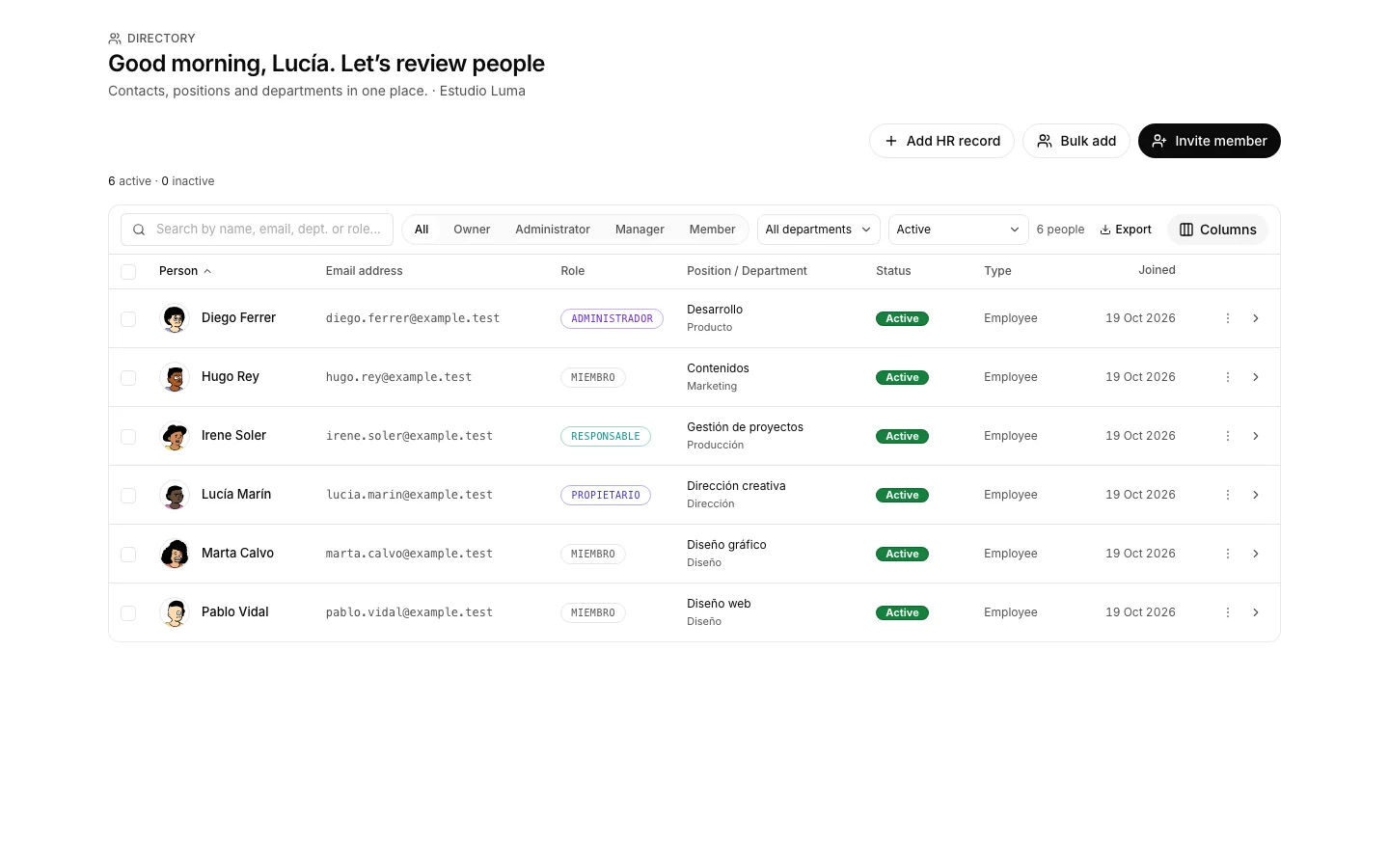
- The directory row says where each person stands: “Account + record”, “Account only” —which cannot book time off— or “Record only”, which can neither sign in nor log time.
How to undo it. Removing somebody from the team does not delete their record: it is kept, deactivated, with its history. If they are only away for a while, deactivate it instead of removing them.
Open someone’s record
To keep contract, working hours, time off and logged hours in one place.
How to do it
- Search the directory by name, email, department or role.
- Open the record: five tabs —Profile, HR, Hours, Time off and Time—.
- The HR tab holds what only an admin sees —tax ID, social security number, home address and bank account— and that is where it gets fixed.
- Sort the directory by start date when the question is who joined last.
Book holiday or sick leave
So the team sees it coming and the balance counts it.
How to do it
- In Time off, press “Request time off”.
- Pick the type —holiday, sick leave, unpaid or other—, the dates and a reason if it helps.
- It goes in as pending, counting the working days in the range, and waits for whoever has to approve it.
- Once approved it shows on the team calendar and takes expected hours off Capacity.
How to undo it. While it is pending, cancel it yourself from the list of requests. Once decided it does not go back: ask for another one with the right dates.
Check how many holiday days are left
To answer “how many days are left?” without opening a spreadsheet.
How to do it
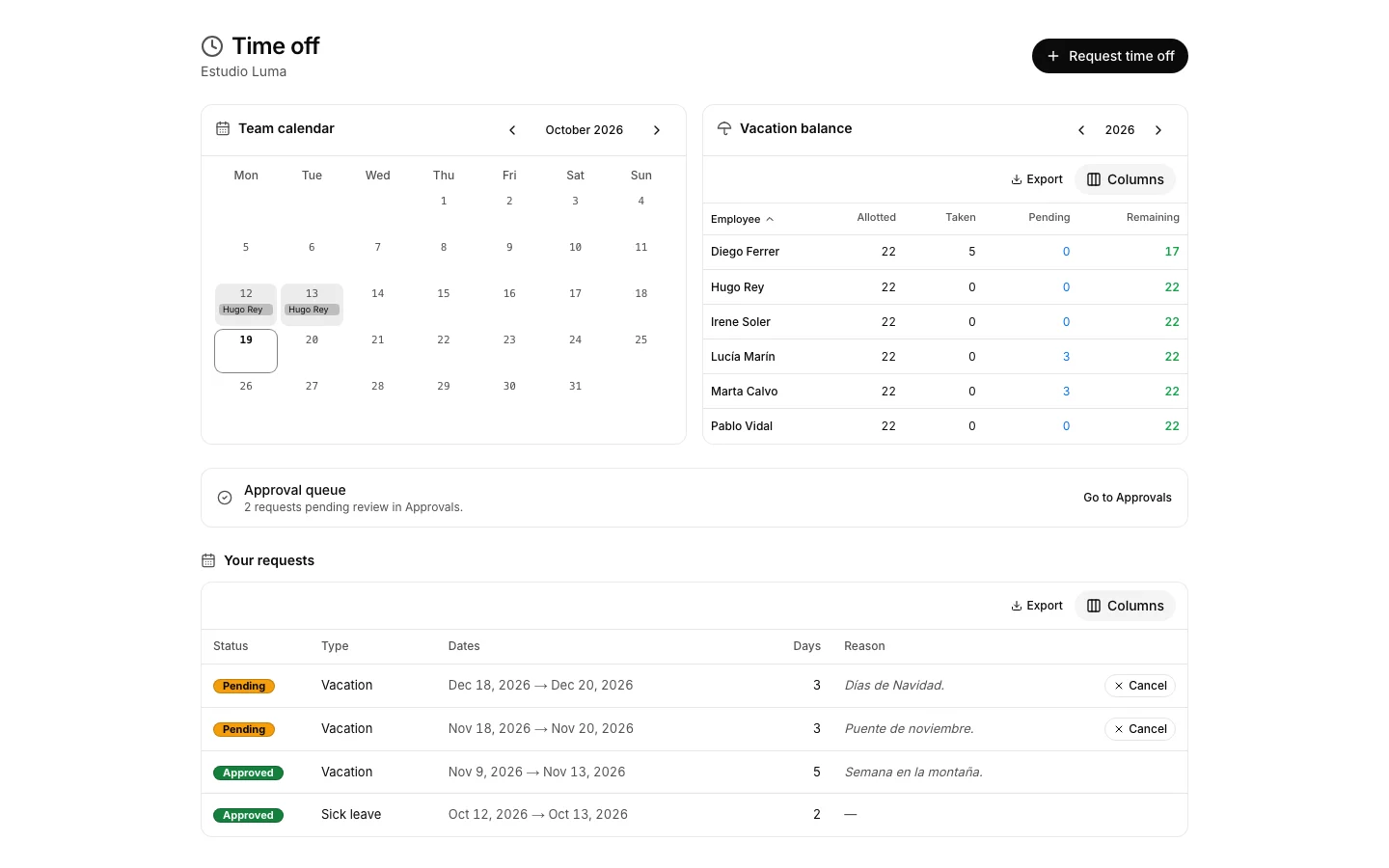
- In Time off, the “Holiday balance” panel lists the whole team by year.
- The allowance comes from the department’s annual days, pro-rated by start date: somebody who joined in July does not get the full year.
- What is left is the allowance minus the days taken. Days still awaiting approval sit in their own column and are not subtracted yet.
- Sort by whichever column matters to see who has the least left first.
Clear what is waiting on your sign-off
So nobody waits on an answer nobody saw.
How to do it
- Approvals is a single inbox, with “All”, “Time off” and “Timesheets” and a count on each.
- Every row is approved or rejected, and it asks for confirmation before writing anything.
- Listing time off is for the owner and admins; approving it is also open to that person’s manager.
- A rejected timesheet goes back to whoever sent it, to fix and send again.
How to undo it. A decided time-off request never returns to pending, which is why the decision asks for confirmation first: if you get it wrong, the person files another. A timesheet, though, can still be rejected after being approved.
Compare expected hours with logged hours
To know who has room and who is over before handing out more work.
How to do it
- In Working hours, the Capacity tab shows the whole week: expected, logged, holidays, time off and the gap.
- Sort by the gap to see who is furthest off first.
- Expected hours come from the schedule cascade, and the table says which level wins for each person.
Export the time record
To hand over a period’s clock-ins to a labour inspection or your accountant.
How to do it
- In Working hours, the “Export the time record” card sits below Capacity; the period starts as last month in full.
- CSV has every clock-in exactly as it was recorded, with fixes marked, their reason, who made them and each entry’s fingerprint.
- PDF sums it up by person and day, with regular hours and overtime based on each person’s schedule.
- The file is prepared in the background and downloads by itself; it stays available for 24 hours.
Set someone’s working hours
So their expected hours stop being the default ones.
How to do it
- In Working hours, the Schedules tab shows the four levels together.
- The most specific one wins: the manual override on the member, then their own schedule, then the department’s and, failing all that, the organization’s.
- Edit whichever level applies right there: Capacity recomputes with the one that ends up winning.
How to undo it. A schedule is changed or removed in the same place, and expected hours fall through to the level below.
Mark the days nobody works
So a bank holiday does not read as hours somebody failed to do.
How to do it
- In Working hours, the Work calendar tab shows the month with its holidays.
- Add the organization’s holidays right there, or import them from a CSV if you already keep a list.
- A department’s own holidays show here too, and are edited on the department record.
- Both kinds take expected hours off Capacity.
How to undo it. A holiday is deleted from the same calendar, and the expected hours of that week recompute on their own.
Group the team into departments
So holidays, working hours and bank holidays are not set person by person.
How to do it
- Create the department and give it its annual holiday days: that is where the balance of everyone inside comes from.
- Give it a weekly schedule and its own holidays if it works differently from the rest.
- Assign people from the directory, one by one or in bulk.
How to undo it. Moving somebody between departments is undone by moving them back. Careful: their holiday balance recomputes with the new department’s days, including the current year.
See who reports to whom
To read the management chain, which is what decides who can approve.
How to do it
- The chart is drawn from the manager set on each record.
- Change the manager on someone’s record and the chart redraws.
- A manager in the chain approves time off for the people below them, even without being an admin.