Chapter
Finance
Finance issues, collects, tracks spend and tells whether the work made money.
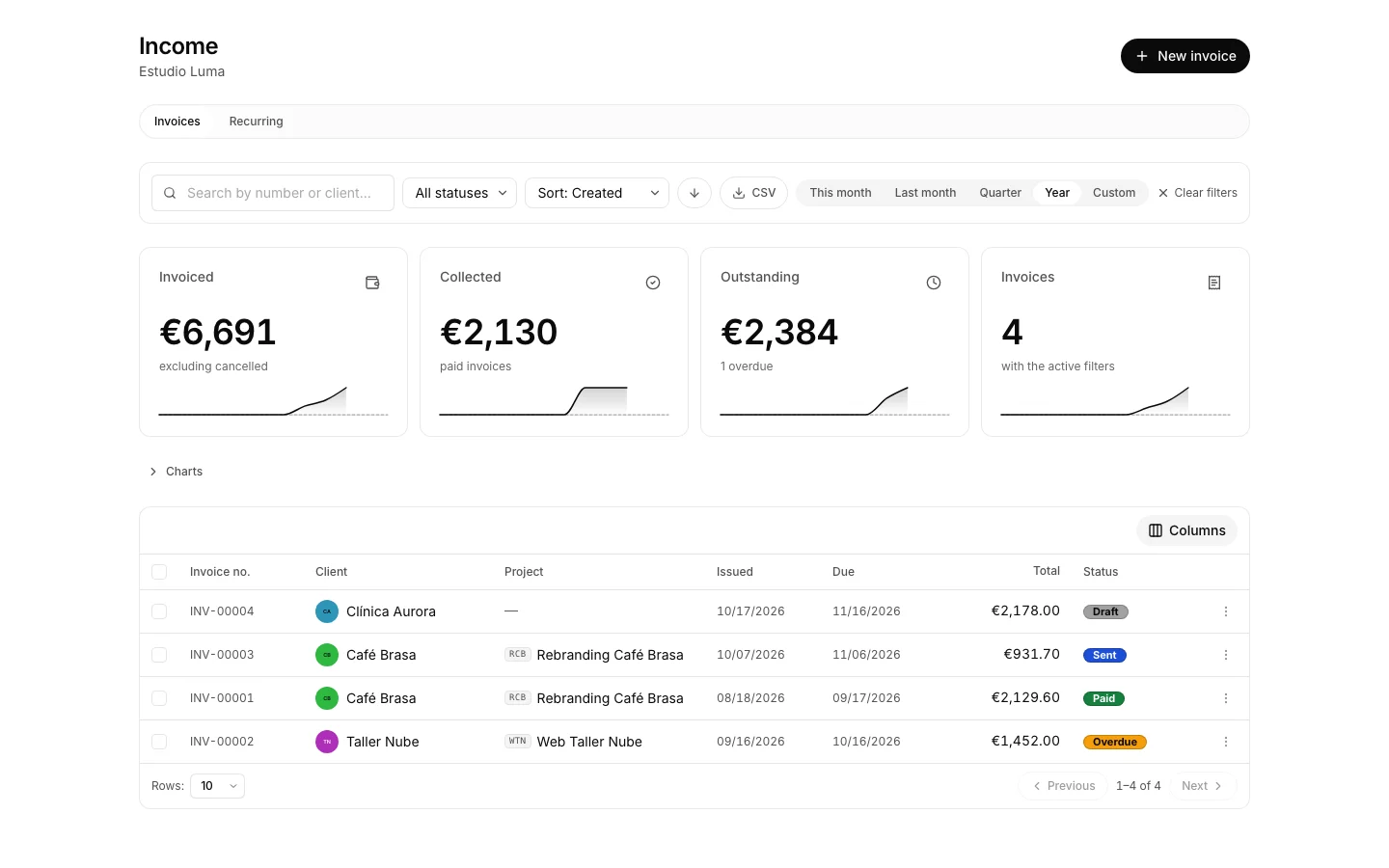
Issue an invoice
To bill a piece of work with its numbering, its VAT and its record.
How to do it
- Press the “+” button on the window bar.
- Pick the client: tax number, address and currency arrive from the client record.
- Build the lines and, if it helps, charge the invoice to a project or a cost center.
- On the second step review the items and the total, tick the box and issue it.
How to undo it. An issued invoice is never destroyed: while unpaid it is voided, and once paid it is corrected with a credit note.
Mark an invoice as paid
So what shows as outstanding is really what nobody has paid.
How to do it
- Open Income and filter by status “Sent” or “Overdue”.
- On the row menu, press “Mark as paid”.
- For several at once, tick them and mark them in one go.
How to undo it. Marking an invoice paid destroys nothing: on the wrong invoice, the row puts it back where it was.
Chase payment without writing the email
So an overdue invoice does not depend on somebody remembering it.
How to do it
- Open Finance settings.
- Switch payment reminders on: they go out 1, 7 and 15 days past the due date.
- The email reaches your client with the invoice link, so switch it on once your payment records are up to date.
How to undo it. The switch goes off whenever you want and the next reminder stops; the ones already sent stay on record.
Turn a project’s hours into an invoice
To bill logged time without copying it line by line.
How to do it
- Open Profitability and press “Invoice” on the project row.
- Adjust the date range and the client it goes to.
- A draft invoice comes out with that time: review it and issue it once it adds up.
How to undo it. What comes out is a draft: it can be edited whole and deleted without a trace until it is issued.
Record an expense
So the project cost does not stay in a drawer.
How to do it
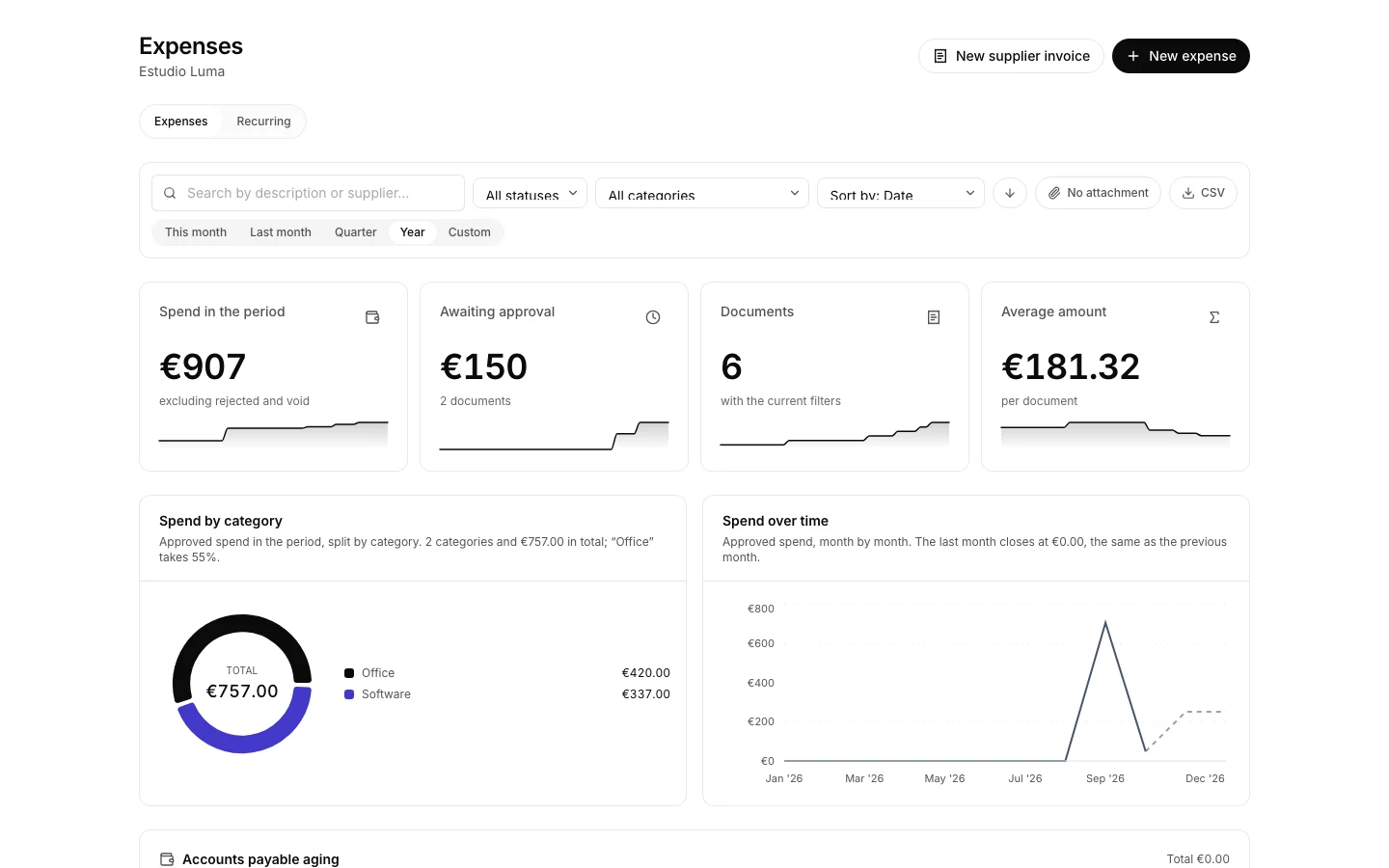
- Press “+” in Expenses and describe the purchase.
- Attach the receipt and give it a category.
- Charge it to a project or to a cost center.
- It counts as cost once approved, and keeps counting after it is paid.
How to undo it. An expense can be corrected or deleted while unreconciled; once reconciled, it is adjusted.
Record a supplier invoice
To deduct its VAT and see what is really owed.
How to do it
- Open Expenses and pick “New supplier invoice” from the “+”.
- Enter the supplier with its tax number, the invoice number and the VAT amount.
- It counts as cost and enters the Modelo 303 the moment it is created, before any approval: there is no “parked” status.
- If it should not hit the books yet, leave it in the invoice inbox and record it when the time comes.
How to undo it. A supplier invoice stops counting as cost when it is voided or rejected, and that is the only way out of the return.
Find out whether a project makes money
To stop guessing which client is worth the trouble.
How to do it
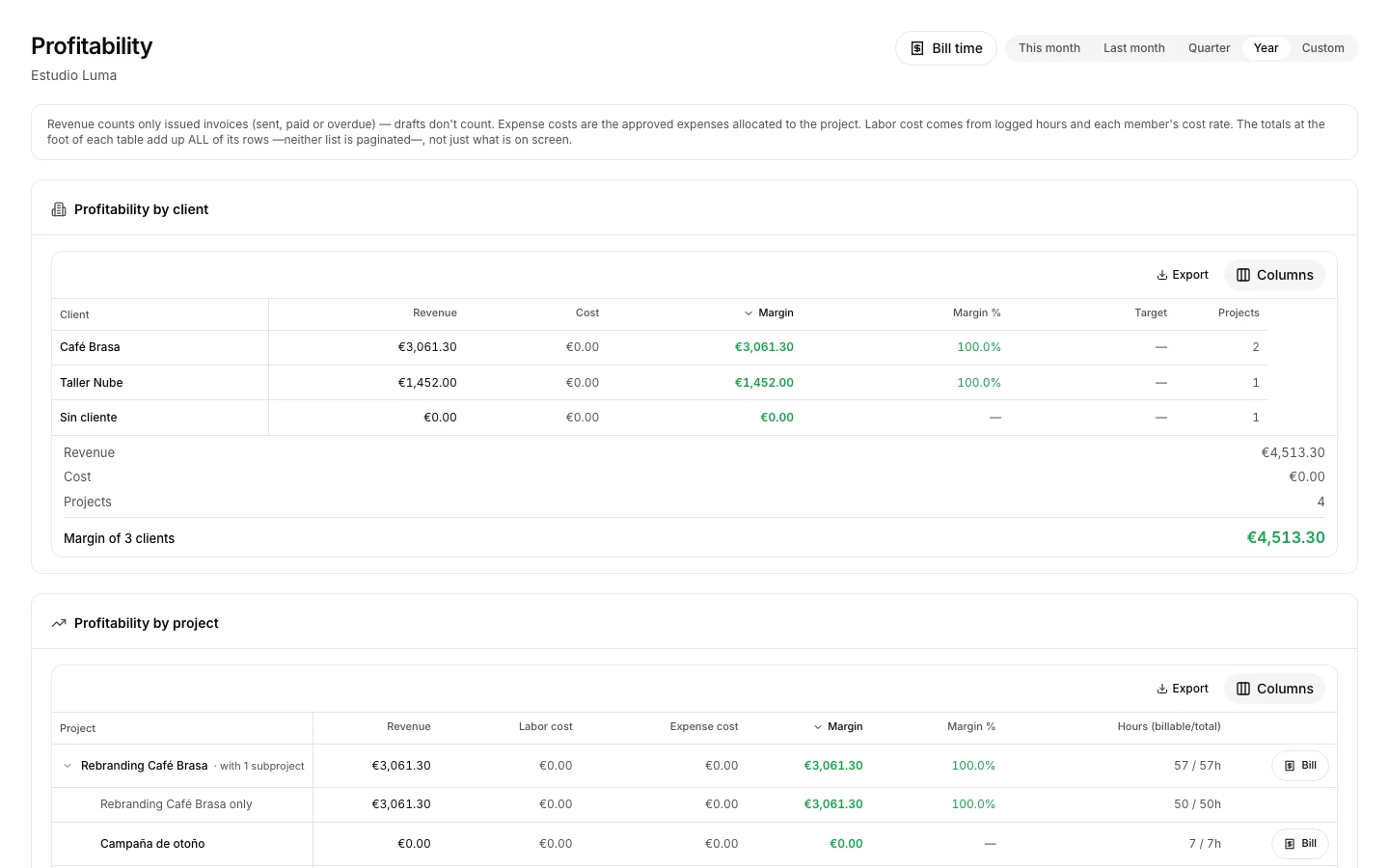
- Open Profitability. It starts on the calendar year; change the range before reading anything.
- Per project and per client, compare labour cost plus expenses against what was billed.
- Sort by margin to put what loses money first.
Split spend by cost center
To know what each area costs, not only each project.
How to do it
- Open Cost centers and create one with its code; it can hang from another.
- Charge invoices and expenses to the center from the invoice or the expense itself.
- The roll-up adds what each center bills and what it costs, in separate columns.
Prepare the 303, the 347 and the 349
To reach the quarter with the figures squared and no rework.
How to do it
- Open the Finance overview.
- On the tax card pick a year, quarter or month and read output VAT, input VAT and the result.
- Check the possible-duplicate warning: those are expenses carrying a supplier invoice number that this return counts and another one might count too.
- Download the ZIP for your accountant, and read the 347 and the 349 by year on the taxes card.
Switch on the invoicing ledger
So every issued invoice leaves a chained record that nobody can rewrite.
How to do it
- Set your organization’s tax number: without it the switch stays locked.
- Turn it on in Finance settings. From then on, issuing an invoice writes its record.
- “Check the chain” in the ledger recomputes every hash, when you ask for it.
- Be clear on what it is and what it is not: the chain gets written, and nothing is filed with the tax office.