Chapter
Documents
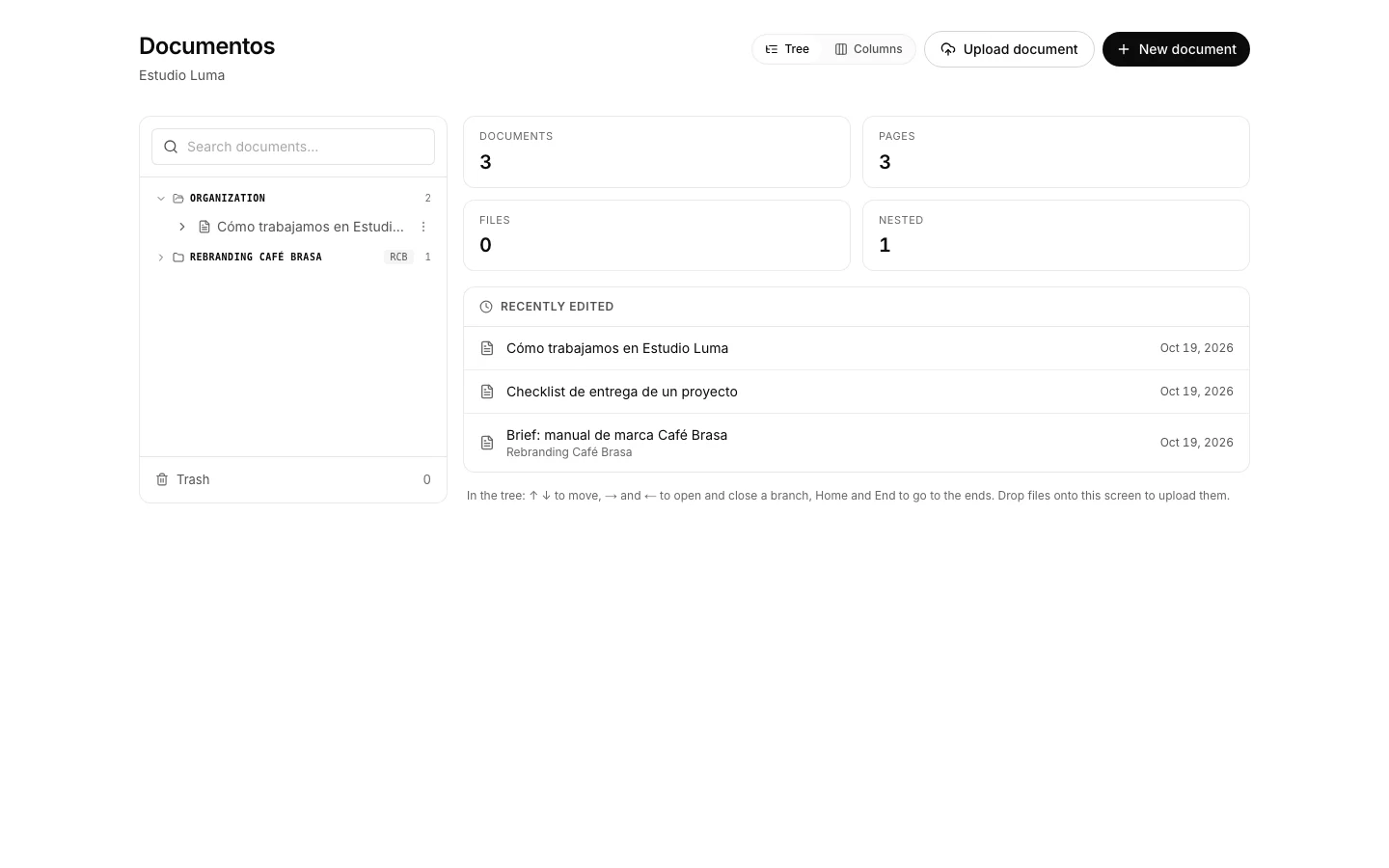
Documents keeps the team’s writing and files in a tree that outlives whoever leaves. It is a Team app: on Free, what you already have can be viewed and downloaded, but not created or edited.
Upload a file
So it stops living in an email and the team can find it.
How to do it
- Drag the files onto the upload area, or press “Upload document” and pick them.
- They land in the folder you have open, several at a time: up to 10 MB each.
- An uploaded file is previewed and downloaded; the text you edit lives in pages.
How to undo it. Deleting a document sends it to the trash in organization settings, text and files included; it comes back from there, and only an admin destroys it for good.
Write a document
For minutes, a procedure or any text meant to last.
How to do it
- Press “+” on the window bar and give it a title.
- Write: it saves itself as you go, and every save leaves a version.
How to undo it. Every save leaves a version: any earlier one can be restored, and restoring saves the current state first.
Start from a template
So every weekly minutes document comes out with the same sections.
How to do it
- Mark a document that already works as the model as a template; an admin does that.
- Press “From template” and pick one: the new document is born with its text inside.
How to undo it. Deleting a document sends it to the trash in organization settings, text and files included; it comes back from there, and only an admin destroys it for good.
Put the document where it will be looked for
So six months from now it turns up without asking anyone.
How to do it
- Nest it under another document, or file it in an organization folder.
- From its record, “Move” takes it somewhere else in the tree.
- Switch between Tree and Columns on the bar, whichever reads better.
How to undo it. Moving changes neither the content nor the version history: move it again and that is that.
Go back to an earlier version
To get back the paragraph that vanished on Tuesday.
How to do it
- Open the document and go into “History”.
- Pick a version to read it in full, and restore it if that is the right one.
How to undo it. Every save leaves a version: any earlier one can be restored, and restoring saves the current state first.
Comment on a paragraph
To argue about one sentence without opening a separate thread in Messages.
How to do it
- Select the part of the document you want to talk about.
- Write the comment: it stays anchored to that part, in the side rail.
- Reply inside the same thread so the conversation does not split in two.
How to undo it. A comment is edited or deleted by whoever wrote it, and by an admin too; the thread stays where it was.
Publish a read-only link
To show it to someone outside who has no account here.
How to do it
- Open the document and press “Publish”; an admin does that.
- Copy the link: it opens the document with no session, and it can be copied again as often as needed.
- If the link ended up where it should not, regenerate it: the old one stops opening.
How to undo it. Unpublishing switches the link off without killing it: publishing again returns the same one. Regenerating it does break the one already going around.