Chapter
Calendar
The calendar gathers your dated tasks, meetings, public holidays, approved time off and your own reminders into one grid. Creating events and campaigns is a Pro feature; what already exists can be viewed and edited on any edition.
Schedule something by dragging the days
To call a meeting, ask for days off or date a task without leaving the calendar.
How to do it
- Drag over the days you want; from the keyboard, Shift plus the arrows marks the range and Enter opens it.
- Pick what it is: meeting, task or time off. Switching type keeps the days you marked.
- Fill it in and save. A task is finished in its own form, which asks for a project; time off is left requested, waiting for approval.
How to undo it. A meeting is deleted from Meetings and a time-off request is cancelled from Time off while nobody has resolved it; the task is deleted from its own record.
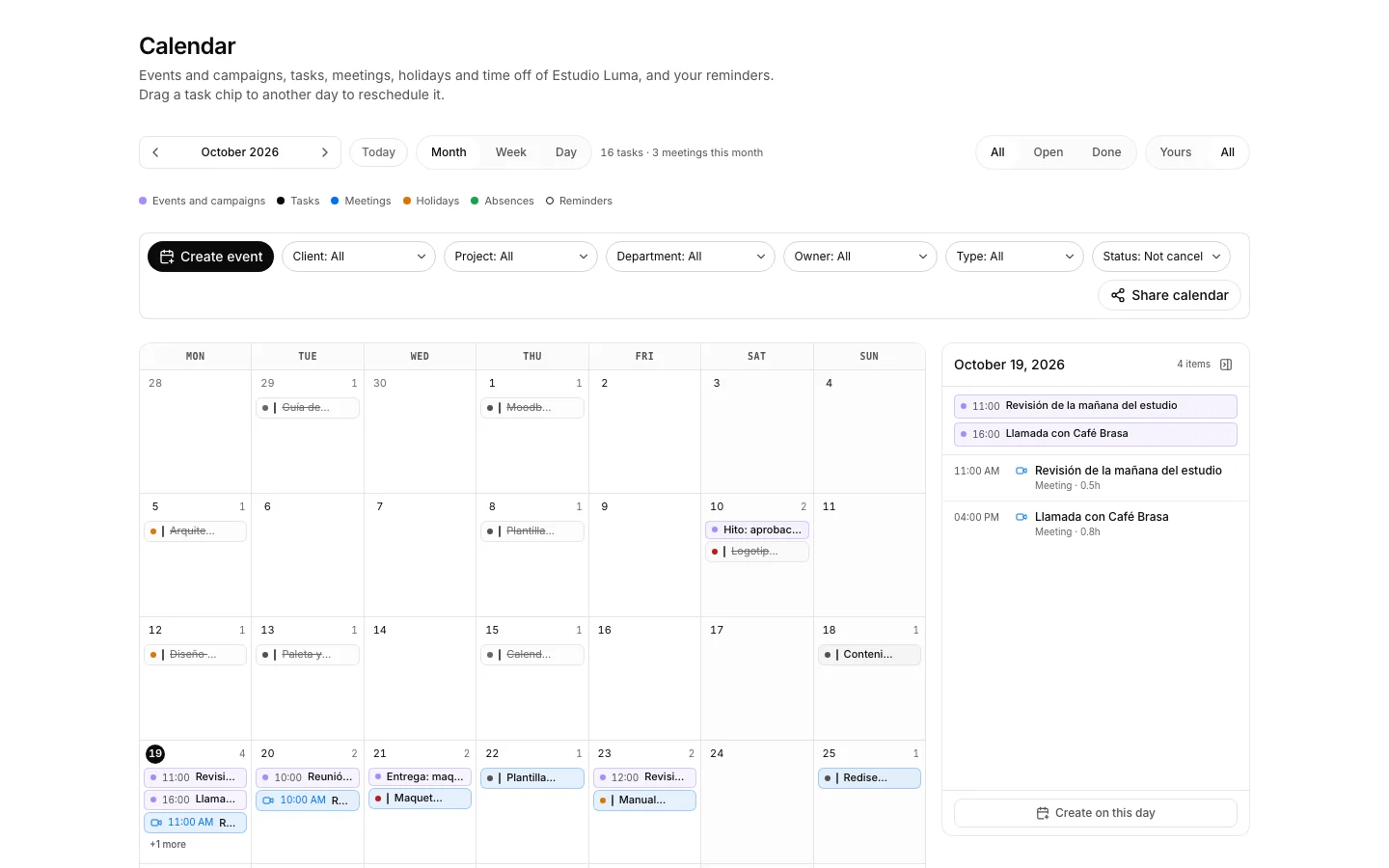
Move a task to another day
To reschedule a delivery without opening the task.
How to do it
- Drag the task chip onto another day of the grid.
- Only its due date changes; everything else about the task stays put.
- A task with no date is not drawn here: give it one from its record and it will show up.
How to undo it. Drag the task again to whichever day you want: the only thing that changes is its due date.
Switch the view
To move from the whole month to the day in front of you.
How to do it
- In the selector on the bar, pick month, week or day.
- The arrows move the period and “Hoy” brings you back to the current one.
Keep only what is yours
So the team calendar does not bury what is on your plate.
How to do it
- On the bar, set the filter to what is yours: your tasks, the meetings you are in and your time off.
- Go back to “All” to see the team again.
- Public holidays always show, and your working hours and reminders are yours already: the filter does nothing to those.
Answer an invitation
So whoever called the meeting knows whether to count on you.
How to do it
- Open Meetings: the ones waiting for an answer sit on top, even three weeks out.
- Press “Going” or “Not going”.
How to undo it. You can go from “Going” to “Not going” whenever you like; what you cannot do is leave the invitation unanswered again.
Tick a reminder off without leaving the calendar
To close out what is done while you look at the day.
How to do it
- Your reminders appear on the day they are due, and only their owner sees them.
- Press the checkbox to mark them done; everything else is edited in their own app.
How to undo it. Press the checkbox again and the reminder goes back to pending.