Chapter
Time
Time records the hours you spend and carries them into project cost and into the invoice.
Start the timer
To record the stretch while you work on it, instead of reconstructing Monday on Thursday.
How to do it
- Open Time and press “Iniciar timer”: it starts in one click and asks nothing.
- When you stop it the time is already saved; only then does it ask what it was for.
- Close that question and the entry stays as it is; fix it whenever you want.
How to undo it. Whatever the timer recorded becomes one more entry: it is edited and deleted like the rest.
Log a stretch by hand
To record yesterday, or anything the timer never saw.
How to do it
- Press “+” on the window bar.
- Enter hours and minutes, the date and, where it applies, project and task.
- Save: the entry joins the table and adds to the period total.
How to undo it. A time entry is corrected or deleted from its row, and stays within reach for 30 days in the trash under organization settings. It only locks for good once those hours have gone into an invoice.
Log the hours on the task itself
So the hours stay attached to the work and read against the estimate.
How to do it
- Open “Your work” and go into the task.
- Under “Hours logged”, press “Log time” and enter the stretch.
- The bar compares reported against estimated, when the task carried an estimate.
How to undo it. A time entry is corrected or deleted from its row, and stays within reach for 30 days in the trash under organization settings. It only locks for good once those hours have gone into an invoice.
Send your week
So whoever approves sees your hours closed and can validate them.
How to do it
- In Time, switch to “Your week”.
- Check each day’s total; the arrows move you to another week.
- Press “Submit week”: the status becomes “Submitted” and the approvers are notified.
How to undo it. A week that has been sent stays “Submitted” until an approver validates or rejects it; the send button comes back when the week is a draft again.
See how much you have logged this month
To know the time spent so far without adding it up by hand.
How to do it
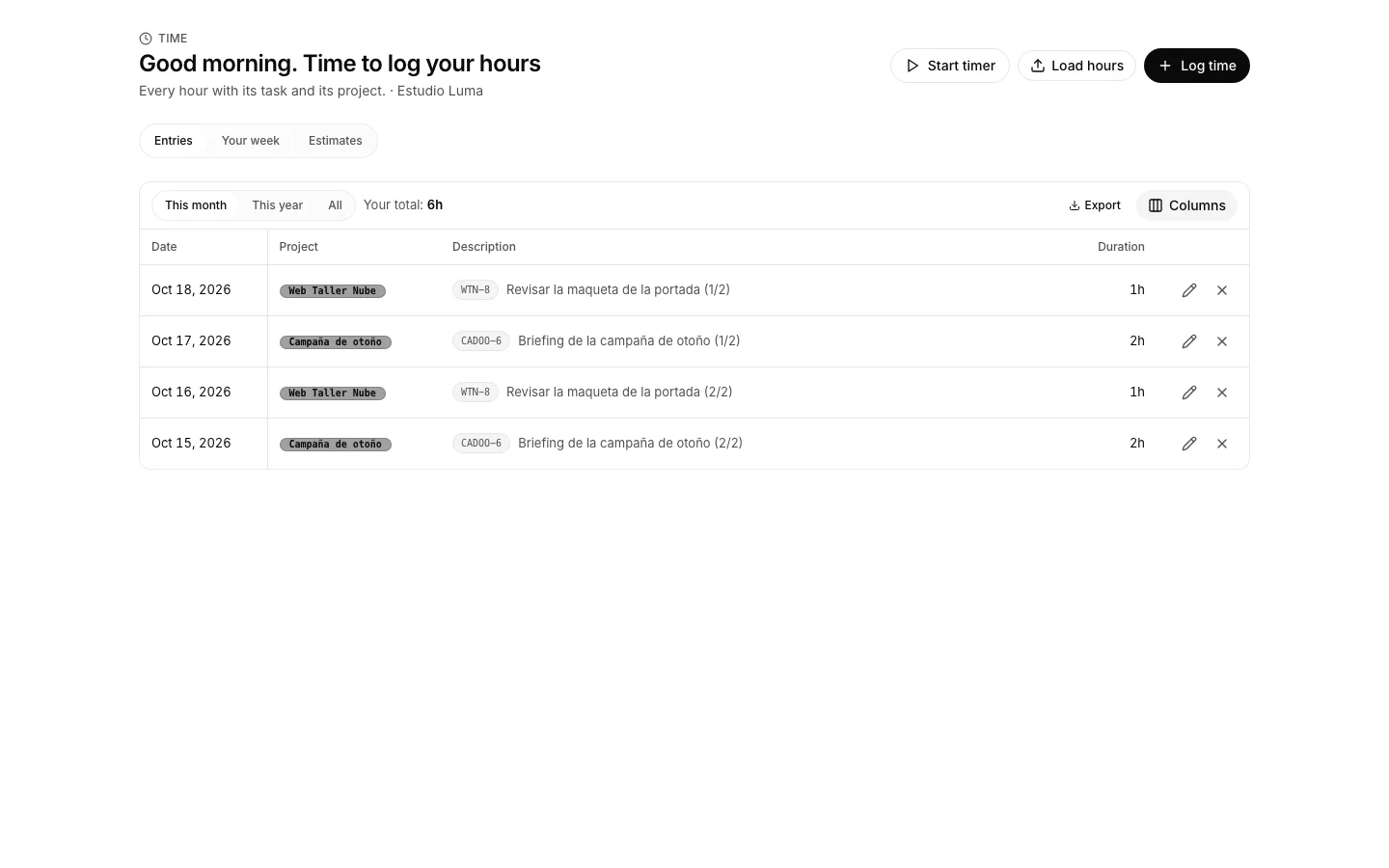
- Open Time and pick the period: this month, this year or everything.
- “Your total” is recalculated over the whole period, not over the page in front of you.
Approve the team’s timesheets
To close the week before it is invoiced.
How to do it
- Open the approvals queue under “Timesheets”.
- Look at the hours of each week sent in and press “Approve” or “Reject”.
How to undo it. An approved timesheet can still be rejected afterwards, and it goes back to the person who sent it.