Chapter
Projects
Projects, their boards and everything that needs doing live here.
Create a project
To keep the tasks, the hours and the invoices of one piece of work in one place.
How to do it
- Press the “+” button on the window bar.
- Give it a name. The key in front of every task number — PJKT-12 — is generated for you if left blank.
- If the work bills someone, pick the client. With no clients on file, that step does not even appear.
- Review and save: the board starts with its columns.
How to undo it. A project gets archived, never destroyed: it stays under “Archived” with its full history and comes back from its own settings.
Jot down a task
So something that needs doing stops living only in your head.
How to do it
- Pick the project it belongs to; with only one project, that step is skipped.
- Write the title and, if it helps, the description.
- Set an owner, a priority and dates. With a start and a due date it also shows on the roadmap.
How to undo it. A task can be reassigned, moved between columns or closed; deleting it outright asks for confirmation.
Move a task across the board
So the state of every piece of work is visible without asking anyone.
How to do it
- Go into the project and open “Board”.
- Drag the card to another column.
- Without a mouse: Space picks the card up, the arrows choose the column and Space confirms.
- If the column has a work-in-progress limit, its meter warns before it is exceeded.
How to undo it. The notice that pops up after moving a card carries “Undo”, and the move also goes on the window undo stack.
See what is assigned to you
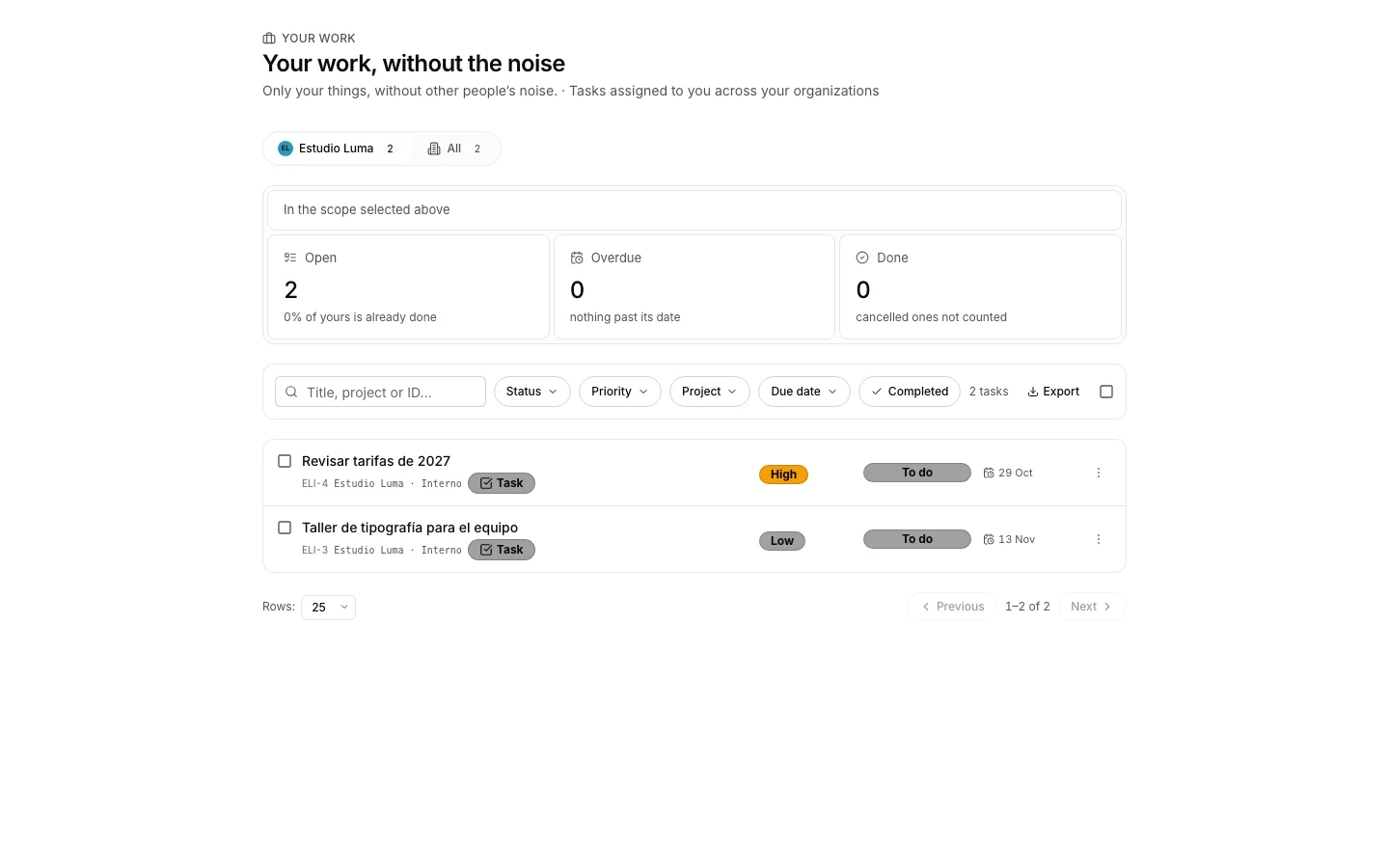
To start the day knowing what is next, without walking every board.
How to do it
- Open “Your work”.
- Narrow it down with “This week”, with “Overdue”, or by project, priority or status.
- The tab strip on top switches organization, and “All” merges them into one list.
- Tick several tasks and change their status in one go.
Review how projects are going
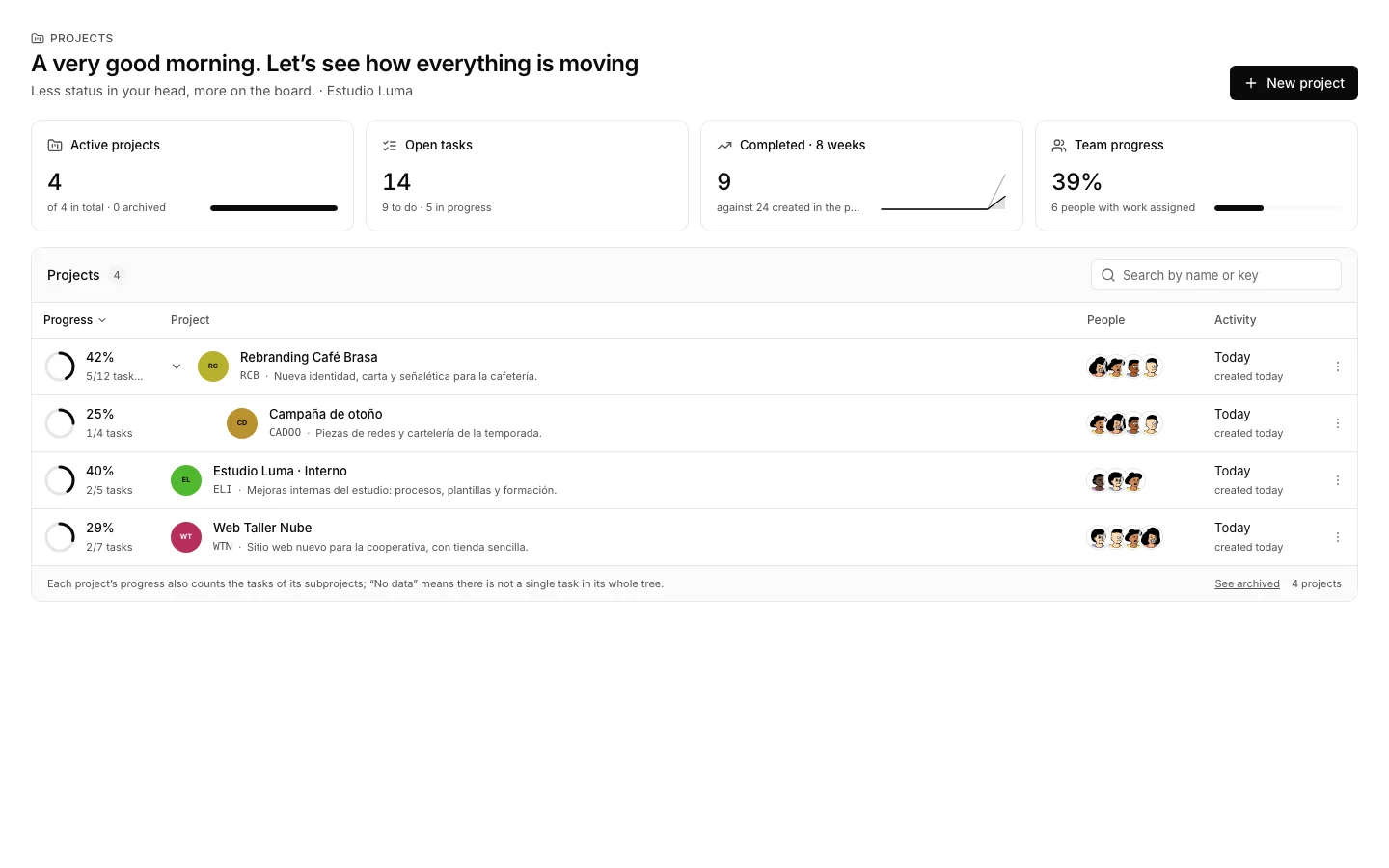
To see progress across all of them at once, with subprojects counted in.
How to do it
- Open the projects overview.
- On top, the organization figures: projects, tasks, trend and team load.
- Below, a sortable table with a progress ring per row. Click a row to go in.
Open a sprint
To agree what goes into the next few weeks, and afterwards see what actually shipped.
How to do it
- Go into the project and open “Sprints”, under the planning group.
- Press the “+” on the bar, give it a name and dates.
- With the sprint selected, “Assign tasks” puts the right ones inside.
- Its panel shows tasks and points done out of the total, and the burndown against the ideal line.
How to undo it. Deleting a sprint does not touch its tasks: they stay in the project, unassigned.
Group projects into folders
So a long list reads by client, by area, or by whatever suits you.
How to do it
- In “Projects”, press “Folders” on the window bar and create the ones you need.
- Drag a project onto a folder to put it inside.
- Folders show up in the left column of the window.
How to undo it. A folder only groups: dragging a project out takes it out, and deleting the folder deletes nothing that was inside.
Share a project with another organization
So a client or an outside collaborator sees only the project that concerns them.
How to do it
- The link comes first: Organization settings › Links, and the other side has to accept it.
- Go into the project and press “Share” on the window bar.
- Pick the organization and the permission: read only, read and comment, or full access.
- In Projects, the “Shared with me” filter shows the ones opened to you; “Shared by me”, the ones you have opened.
How to undo it. In that same share dialog, “Stop sharing” cuts that organization off straight away.
Bring back an archived project
To look up finished work without cluttering the list of live ones.
How to do it
- Open “Archived”.
- Go into the project and open “Settings”.
- Press “Reactivate”: it returns to the list with everything it had.
How to undo it. Any archived project comes back to the list from its own settings.
Move between sections
To jump from the board to the overview or the archive without going back.
How to do it
- The left column lists the sections of the app.
- Click one and the window switches without losing what is open.