Chapter
Client portal
The portal is what your client sees: their invoices, with no account.
Create the portal link
So the client can check their documents without asking for screenshots or a password.
How to do it
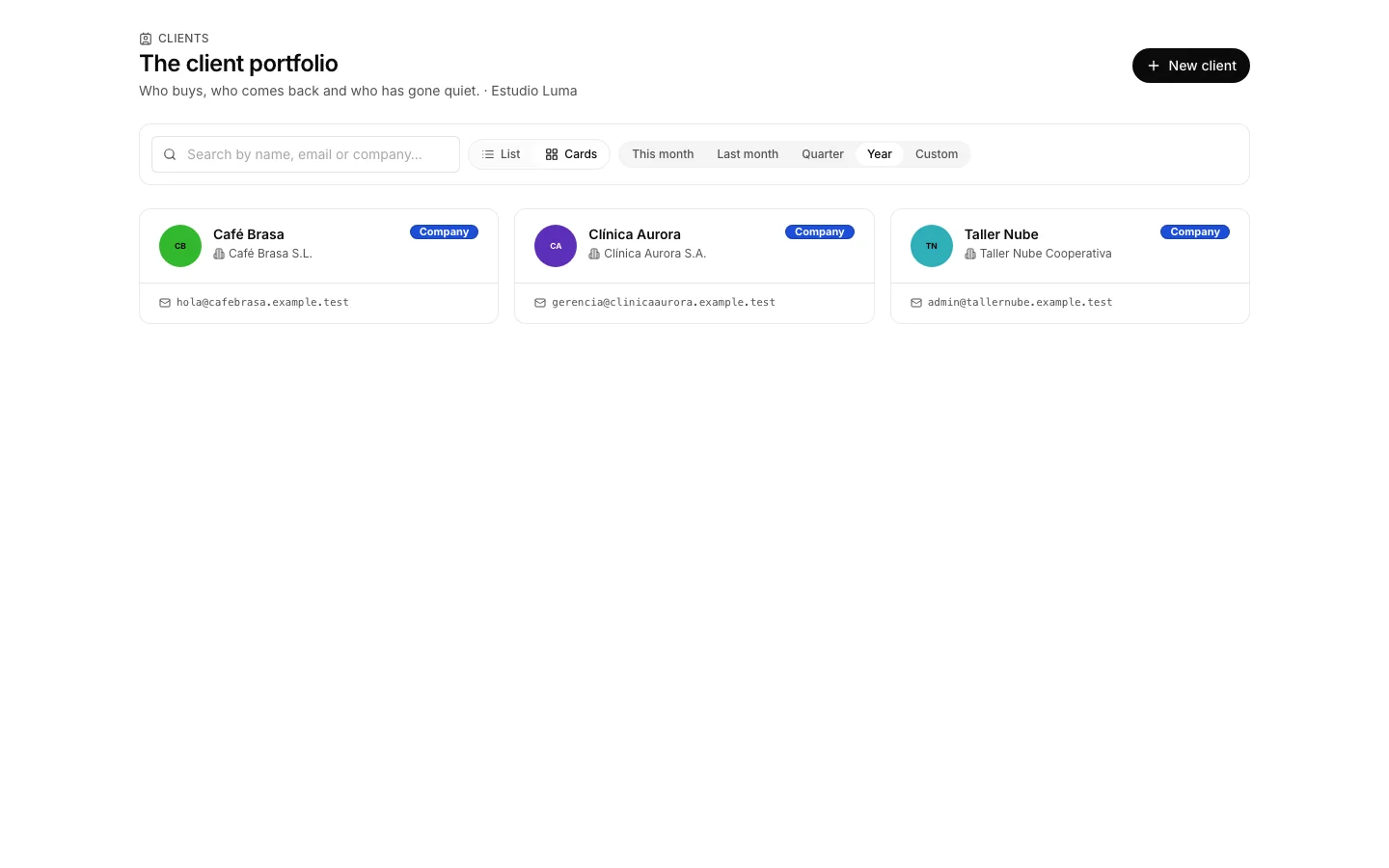
- Open Clients and go into the record of whoever needs it.
- On the “Client portal” card, press “Create link”.
- Copy it before closing the notice: the link is shown only once.
- Send it yourself, wherever the conversation happens. It expires after 30 days.
How to undo it. The portal link can be revoked at any time from that same card, and it stops opening instantly.
Understand what the client sees
So nothing extra gets shown by accident.
How to do it
- The portal shows their invoices, with the branding of your organization.
- It never shows projects, tasks, hours, costs or team conversations.
- Whoever holds the link gets in: there is no password. That is why it expires and why it can be revoked.
Decide which documents reach the portal
So the client sees what has been presented to them and nothing else.
How to do it
- Of the invoices, the issued, the paid and the overdue ones show. A draft does not, and neither does a cancelled one: on a portal for payment it would invite paying what is no longer owed.
Collect an approval
To have it in writing that the client gave the go-ahead, and on what date.
How to do it
- The client presses “Approve” on an invoice from their portal.
- They type their name and email, and the action is sealed with the date, their IP and a fingerprint.
- Approving an invoice does not make it paid: you mark that in Finance.
Put your branding on the portal
So the client recognizes whose page they are opening.
How to do it
- Open the organization settings and scroll to the “Branding” block.
- Upload the logo and pick the colors, or let them be taken from the logo itself.
- The portal header and its figures come out in that color.
How to undo it. The logo and the colors can be changed again in the same block, and nothing the client already approved depends on them.
Cut off access to the portal
To close the door when a link gets forwarded or the work ends.
How to do it
- Go back to the client record, to the “Client portal” card.
- Press “Revoke” on the link that is no longer wanted: it stops opening right away.
How to undo it. Revoking does not close the door for good: create another link and send it whenever it is needed.