Chapter
Planner
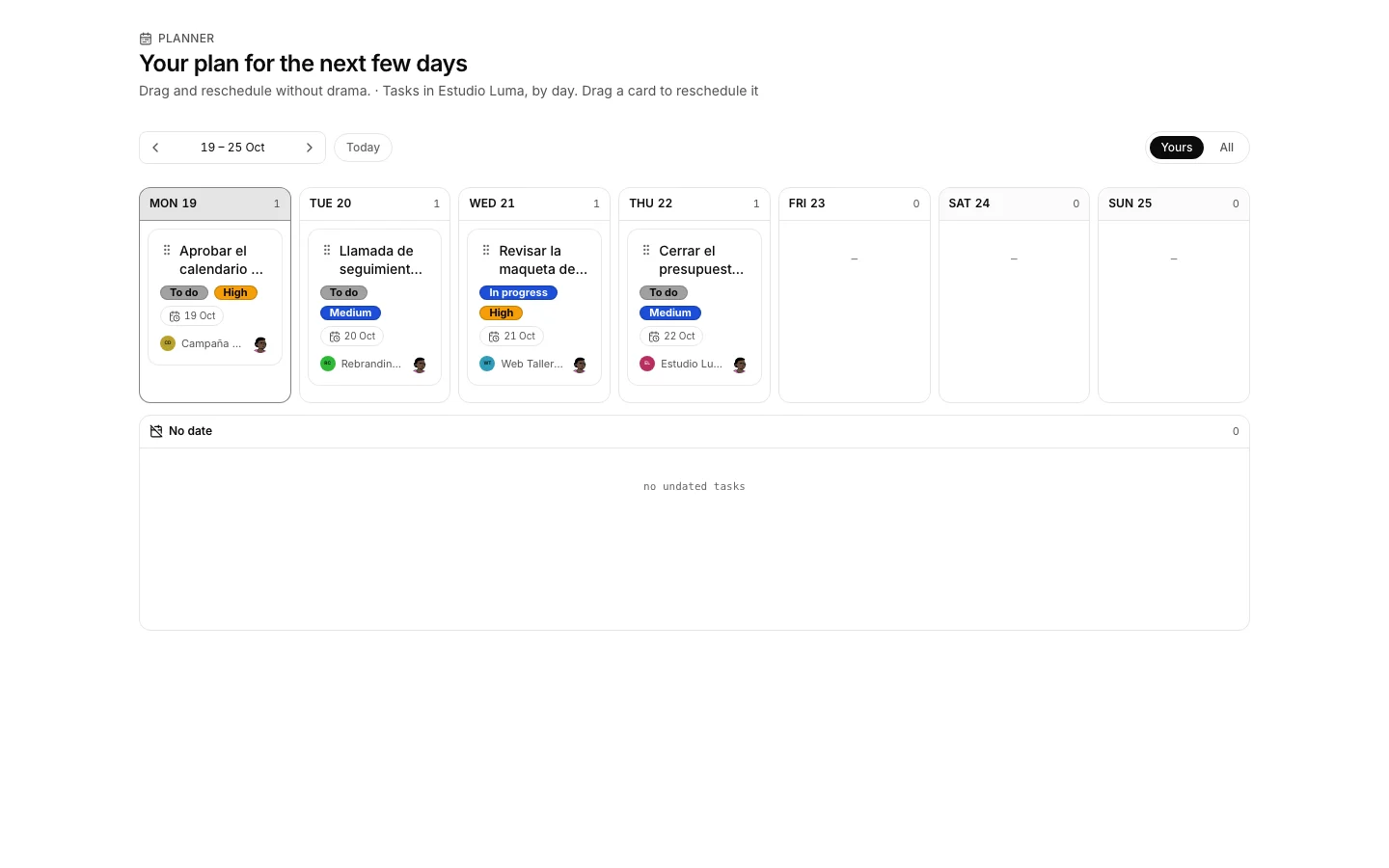
The planner lays the tasks of the organization out over the week, one column per day.
Look at the working week
To see what falls due each day at a glance, without going project by project.
How to do it
- Open the planner.
- Every task lands on the column of the day it is due, whichever project it came from.
- The arrows change week and “Today” returns to the current one.
- Done and cancelled work never shows: this is for what is still open.
Move a task to another day
To shift what will not fit today without opening its record.
How to do it
- Drag the card onto the column of another day.
- The due date of the task is rewritten, and it shows the moment the card drops.
How to undo it. Dragging the card back leaves it as it was: changing day only changes the due date of the task.
Give a date to what has none
So pending work with no day stops being invisible.
How to do it
- At the bottom, the “No date” lane gathers the tasks with no due date.
- Drag one onto a day of the week and it is scheduled.
- That lane also catches work due on a day the calendar does not work, so nothing gets lost.
How to undo it. Dropping a card on “No date” clears its due date and returns it to the lane.
Compare your week with the team’s
To check the split holds up before promising a date.
How to do it
- The switch on the top right goes from your tasks to those of the whole organization.
- The figure on each column says how many land that day.
- On your own tasks the week follows your working hours; on everyone’s, those of the organization.
Switch to the calendar
To look at the same stretch of time with meetings, holidays and time off on top.
How to do it
- The left column moves between the planner and the calendar, both ways.
- It is the same window: nothing open gets lost.