Chapter
Employee portal
Yours is what the company holds about you and only you see: your record, your time off and your projects. Plus clocking in.
Complete your own record
To get paid and taxed on the right details, without asking anybody.
How to do it
- Your record is yours even if you manage nobody: your details and your time off.
- While a basic detail is missing, four areas stay shut, and the notice says which one is missing, what it is needed for and what opens once it is in.
- Each missing detail is a link to its field below: it takes you there and leaves the focus on it.
- Clocking in does not wait for any of this: the record of working time is an obligation towards every person, and it stays open.
How to undo it. Your details are fixed by saving them again. What the organization sets is not editable here: that is changed by whoever runs people.
Check your balance and your requests
To know how many days you have left, without seeing anybody else’s.
How to do it
- This year’s balance shows even if you have asked for nothing yet: what you are entitled to and what you have asked for are two different things.
- Your requests are underneath, with their state: pending, approved or rejected.
- The list is deliberately not filtered by year: time off that crosses New Year would otherwise vanish between two years.
- Asking for new time off still happens in Workforce, which is where the team calendar lives.
See your projects
To know which projects the organization counts you in.
How to do it
- Here are the projects whose team you belong to, which is not the same as having a single task in one.
- Each project is a link: it opens without leaving the desktop.
Clock in and clock out
To keep the legal record of working time without a paper notebook.
How to do it
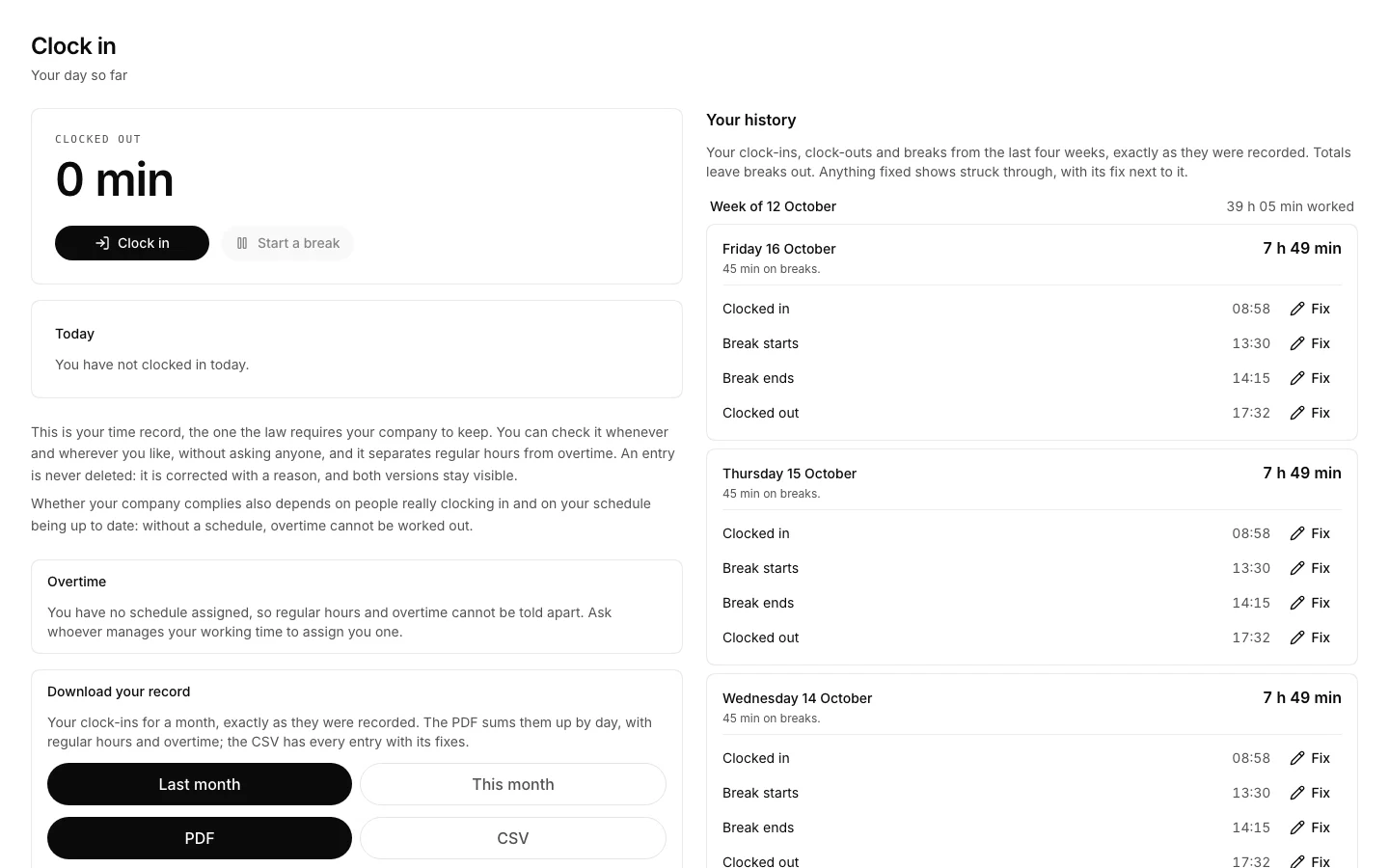
- Open Clock in and press “Clock in”: the state at the top turns to “Clocked in”.
- For lunch or a break, “Start a break”; back again, “End the break”. Break time adds up separately.
- When the day ends, “Clock out”. The day stays listed below, entry by entry.
- This is not logging time: here you say when you were at work, and hours on a project go into Time.
How to undo it. A clock-in is never edited or deleted: it stays in the record and is corrected with another one that says which entry it corrects and why. The correction shows marked next to the original.
Prove the record has not been touched
To answer a labour inspection or a works council without asking anybody.
How to do it
- Every entry is chained to the previous one by a fingerprint, and none of them can be edited or deleted.
- In Clock in, “Check” recomputes the whole chain and says how many entries from how many people add up.
- If they do not, it says from which number on. The app does not do that: it means somebody wrote into the database from outside.
- It is admin-only, and it lives on that screen because that is where people look when somebody asks whether the record is trustworthy.