Chapter
CRM
CRM runs the funnel: from a cold contact to a paying client. Client records are a Team feature (on Free they can be viewed and downloaded, not created or edited); the funnel is Pro.
Open a deal
So a sale in progress stops living in your inbox and gets an amount, an owner and a date.
How to do it
- Go to CRM, Pipeline tab, and press the “+” on the window bar.
- Give it a title, an amount and a currency, and pick the client if they are already on file.
- Add the probability and the expected close date: those two numbers are what the overview forecasts with.
- Save, and the deal shows up in the first stage of the funnel.
How to undo it. A deal is deleted from its own card and asks for confirmation; until then it can be edited and moved as often as needed.
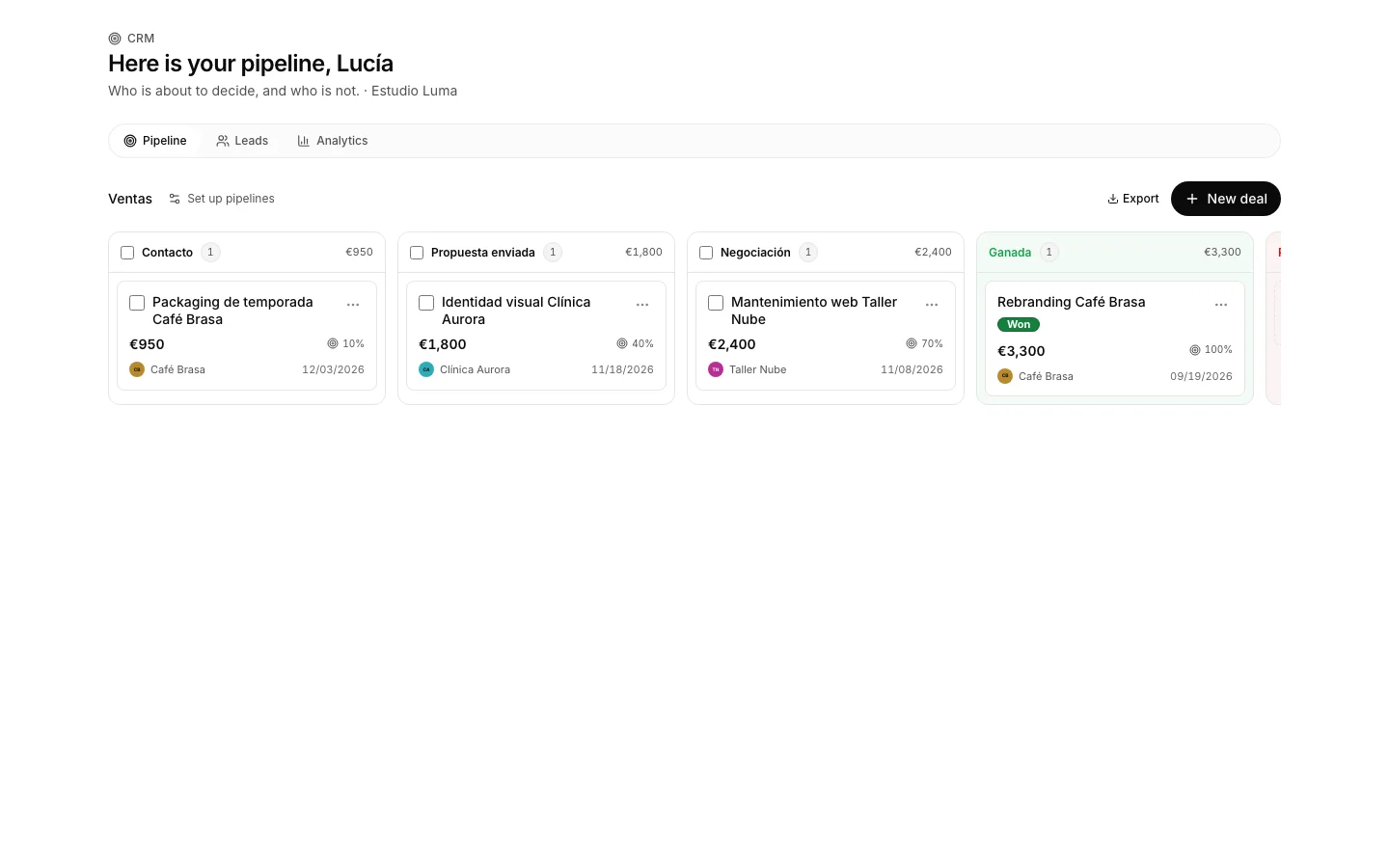
Move the deal along the funnel
So the board says where every sale stands without anyone having to ask.
How to do it
- Drag the card to the next stage.
- The probability updates on its own: it is the one set on the stage it lands in.
- If a move does not get saved, the screen says so under the funnel name.
How to undo it. A deal can change stage as often as needed, and the way back counts too.
Close the deal, won or lost
So the forecast stops counting something that has already been decided.
How to do it
- On the card menu, pick “Won” or “Lost”.
- When marking it lost you can write the reason: price, competition, no budget.
- The deal jumps to the won or lost stage if the funnel has one.
How to undo it. Drag the deal back to an open stage and it is in play again: the status returns to open and the lost reason is cleared.
Turn a won deal into a project
To go from selling to delivering without typing the client in again.
How to do it
- Open the won deal and press “Convert to project”.
- The project starts with the client from the deal, and the screen takes you there.
- Converting it again gives back the same project: nothing gets duplicated.
How to undo it. Converting the same deal twice gives back the same project. If the project is not wanted, archive it from Projects.
Jot down a lead
So nobody gets lost who is not a client yet and has no open deal.
How to do it
- Go to CRM, Leads tab, and press the “+” on the bar.
- A name is enough; company, email, phone and source help later on.
- The source is what feeds the chart of where the business comes from.
How to undo it. A lead can be edited or deleted from its row for as long as it has not been converted.
Turn a lead into a client
To stop treating them as a loose contact once there is something to invoice.
How to do it
- On the lead row, press “Convert”.
- The client is created with their name, company, email and phone, and the lead is marked as converted.
- Fill in the tax number and the address on the client record before invoicing them.
How to undo it. A converted lead cannot be converted again, and the warning says so. The client it created is deleted from Clients and waits in the trash of the organization settings.
Add a client
So the tax number, the address and the currency are ready when it is time to invoice.
How to do it
- Open Clients and press the “+” on the window bar.
- Fill in name, tax number and billing address: every invoice copies them from there.
- Leave “Active client” ticked; unticking it leaves the record with an “inactive” chip instead of making it disappear.
How to undo it. A deleted client goes to the trash in the organization settings and is restored from there; purging it for good takes an admin.
Review what is about to close
To see the forecast for the month and which deal has been stuck the longest.
How to do it
- Open the sales overview.
- Pick a deal from the list and its figures, its stage and its client record show up on the right.
See where the business comes from
To invest where it works, not where it looks like it works.
How to do it
- Go to CRM, Analysis tab.
- That is where the conversion rate, the funnel value —gross and weighted— and the source of the leads live.
See how much each client bills
To know who the business depends on before it becomes obvious.
How to do it
- Open Client portfolio, inside Clients.
- Sort by billed or by outstanding by pressing the column header.